A TFTP (Trivial File Transfer Protocol) server is a simple file transfer protocol commonly used in computer networking environments. It allows for the transfer of files between a TFTP server and client devices over a network.
Unlike other file transfer protocols such as FTP or SFTP, TFTP is a lightweight protocol that provides basic functionality with minimal features.
The main purpose of a TFTP server is to facilitate the efficient transfer of files, particularly in situations where a small and lightweight protocol is sufficient. Specifically, TFTP servers address the following pain points in an organization:
- Time and resources required to update firmware across multiple endpoints.
- Lack of a simple and lightweight transfer mechanism.
- Challenges in PXE boot provisioning.
- Complexity managing transfers across multiple environments.
- Security concerns from open file transfers.
- Limited visibility for troubleshooting and diagnostics.
- Manual and error-prone transfers.
To address the above pain points, we have researched and identified the best free TFTP servers for Windows, Linux, and Mac devices.
Based on our independent research, selection requirements, and rating methodologies, these are the best free TFTP servers for Windows, Linux, and Mac on the market today:
- Windows TFTP Utility EDITOR’S CHOICE This is a straightforward tool for transferring files via TFTP protocol. It’s lightweight, easy to use, and ideal for network device configurations.
- TFTPD64 A package of useful network monitors that includes a DHCP server monitor, a DNS monitor, and a Syslog server as well as a TFTP server software.
- haneWIN TFTP server 32-bit and 64-bit TFTP server for Windows environments that can be restricted in operations to IP address or directory.
- Pinkie A bundle of tools delivered in a tabbed interface that runs on Windows systems and includes a TFTP server.
- SolarWinds Free TFTP server This tool runs on Windows and includes an IP-range lock-down and can transfer files up to 4GB in size.
- atftpd Linux command-line utility that is fast at transferring files but has no inherent network security.
- tftpd-hpa Straightforward Linux command line TFTP system.
- macOS TFTP server Simple command line TFTP server for macOS.
If you need to know more, explore our vendor highlight section just below, or skip to our detailed vendor reviews.
Free TFTP Servers for Windows, Linux and Mac highlights

Top Feature
SQL-based event logging for centralized TFTP auditing
Price
Free
Target Market
Network administrators, MSPs and small-business IT teams
Free Trial Length
Free and open-source
Additional Benefits:
- Uses minimal CPU and memory resources
- Simplifies TFTP deployment with almost no configuration
- Supports troubleshooting through centralized event logging
- Embeds TFTP capabilities into custom C# applications
Features:
- TFTP server for Windows
- SQL Server event logging
- Reusable .NET and C# class
- Continuous file reception
- Configuration image and firmware transfers

Top Feature
TFTP server with DHCP, DNS and Syslog services
Price
Free
Target Market
Small network teams and embedded system engineers
Free Trial Length
Free and open-source
Read more ▼

Top Feature
Multicast TFTP transfers using RFC 2090
Price
Free
Target Market
IT engineers and Windows TFTP teams
Free Trial Length
Free forever
Read more ▼

Top Feature
Passive TFTP reception on UDP port 69
Price
Free
Target Market
Network engineers and IT staff needing TFTP diagnostics
Free Trial Length
Free tool
Read more ▼

Top Feature
Concurrent TFTP transfers with IP-based access control
Price
Free
Target Market
IT administrators of small enterprises
Free Trial Length
Permanently free
Read more ▼

Top Feature
Multicast TFTP transfers for multiple Linux clients
Price
Free
Target Market
Linux system administrators and data center engineers
Free Trial Length
Permanent free use
Read more ▼

Top Feature
Dynamic TFTP path rewriting with map-file rules
Price
Free
Target Market
Linux system administrators, PXE deployers and network engineers
Free Trial Length
Free
Read more ▼

Top Feature
System-level TFTP service controlled through LaunchCTL
Price
Free
Target Market
Mac users, embedded device developers and firmware engineers
Free Trial Length
Permanent free availability
Read more ▼
Key points to consider before choosing free TFTP servers for Windows, Linux, and Mac
If you plan to use TFTP servers extensively for transferring files, selecting the right server is a key decision. Though some operating systems come with a built-in server, they may not suit your specific requirements, and this is where it helps to have an external server. Here are a few factors to consider while making this selection.
- Cross-platform Compatibility: If you have two or more operating systems in your network, make sure the selected tool has cross-platform compatibility to send files across different environments and operating systems.
- Security: As you may transfer sensitive files, it is important that your chosen tool comes with security features and access controls. Specifically, look for tools that offer encryption, role-based access controls, authentication, and more.
- Multithreaded Servers: If you plan to use TFTP servers for managing firmware or OS image deployments, look for TFTP servers that support RFC 2347-2349. It is also good to have multicast capabilities.
- Logging: it helps to have tools that record and log TFTP transactions, so you can use them for further analysis, troubleshooting, and even audits.
Keeping the above factors as benchmarks, we have come up with a list of free TFTP servers.
To dive deeper into how we incorporate these into our research and review methodology, skip to our detailed methodology section.
What is TFTP?
TFTP stands for Trivial File Transfer Protocol. It is a simple file transfer protocol that is commonly used in computer networking environments. TFTP is a stripped-down version of the File Transfer Protocol (FTP) and is designed to be lightweight and easy to implement.
It operates on UDP (User Datagram Protocol) port 69 and does not require authentication or encryption.
The protocol is not capable of allowing more advanced functionality but compensates by using the lockstep method of fault-tolerance that makes it extremely reliable. Due to this limited functionality, TFTP servers can have an extremely small footprint on the disk as well as in memory, making it ideal for use in embedded network devices.
Caution: TFTP has zero security. There is no concept of user accounts so anyone will be able to connect to your TFTP server. Ensure your server machine is secured in some other way such as with a firewall or by limiting the network interfaces the server listens on.
Linux is far and away the most common operating system on the type of devices where you’re likely to encounter a TFTP server. But, there is also a rich ecosystem of Windows and macOS devices that run device firmware (think Apple TVs and Microsoft Surface for a few examples).
See also:
The Best Free Windows TFTP server software
1. Windows TFTP Utility
Best for: Lightweight TFTP server for Windows environments.
Relevant for: Network administrators, MSPs, and IT teams of small businesses who want TFTP transfers on a Windows host.

The Windows TFTP Utility is a bare-bones TFTP server for Windows systems. It is extremely small and has almost no configuration options. On the one hand, that allows the utility to be very small and fast. On the other hand, it means that you’re unable to specify some basic configuration such as which network interface to bind.
Windows TFTP Utility’s key features
- Free tool: Permanently free to use
- Low overheads: Doesn’t use much CPU capacity
- .NET utility: Available as a class that can be integrated into custom programs
- Run continuously: Start the program and let it receive files
- Request Logging: Provides a range of logging options, including to an SQL Server database.
Unique buying proposition
This free and open-source TFTP server was built for Windows using .NET/C#. With this tool, you can transfer files to multiple targets, including Microsoft SQL Server. You can also embed a C# class in your own tools to bring TFTP capabilities to your existing workflows.
Feature-in-focus: SQL-based Audit Logging
A notable feature of Windows TFTP Utility is its ability to direct all TFTP-related events to an SQL table. This acts as a central storage of all your requests, which can be analyzed further for troubleshooting and even for audits, if required. These are built-in tables that come with three columns, namely, EventDateTime, EventLevel, and EventMessage. This makes the setup simple and easy.
Why do we recommend it?
Windows TFTP Utility is a free utility for Windows, but its name is a little confusing. To be clear, this isn’t a Microsoft product and it isn’t part of Windows. Rather, it is a third-party enthusiast-developed tool that can be installed on Windows. The big advantage of this tool is that it is very basic, which is what most people want from a TFTP server.
Who is it recommended for?
This utility is only suitable for internal use on a private network because, like any TFTP system, it doesn’t include encryption. An advantage of this tool is that it has almost no features, so it is very straightforward and uses very little memory. A nice feature of this tool is that it can be included into your own programs as a function call, so administrators who like to write their own scripts will like this solution.
Pros:
- Network utility: Use only on a secure network
- No encryption: Follows the standard protocol of TFTP
- Use with network devices: Receive and store configuration images
- Firmware distribution: Use to update the firmware on switches and routers
- Assists automation: Can be integrated into task automation scripts.
Cons:
- Dated: The project was last updated in 2013
The small size comes from a reliance on the .NET framework. But, if you do not already have the .NET framework installed for some other application, that can result in a heavy installation footprint so this utility may not be optimal for every use-case. In addition, it comes with a .NET class that developers can use to incorporate TFTP into their own applications.
EDITOR'S CHOICE
Windows TFTP Utility is our top pick for a free TFTP server because it provides a lightweight and straightforward implementation of TFTP for Windows environments. Built using .NET/C#, it uses minimal system resources and can be integrated into custom applications through its reusable C# class. The tool is particularly useful for network administrators who need a simple way to receive and distribute configuration files, firmware, and other files over a secure private network. Its logging capabilities are a notable advantage, with TFTP events able to be recorded in a Microsoft SQL Server database for troubleshooting and auditing. Windows TFTP Utility does not provide the encryption or authentication features of more advanced file transfer protocols, so it should be deployed only within appropriately secured networks. For Windows administrators who need a small, free TFTP server with useful logging and development integration options, it is a practical choice.
OS: Windows
2. TFTPD64
Best for: A multi-functionality tool for Windows.
Relevant for: Small network teams and embedded system engineers.

Tftpd64 is a free TFTP server for Windows. The utility also includes a TFTP client, a DNS server, a DHCP server, and a Syslog server. There is also a SNTP receiver in the package to coordinate with the Simple Network Time Protocol.
Tftpd64’s key features
- Made for Windows: For 64-bit architecture PCs
- Multiple functions: The utility provides both TFTP client and server programs
- Small footprint: Uses few system resources
Unique buying proposition
This is a forward-looking TFTP tool that’s geared for both IPv4 and IPv6 environments. Moreover, it runs as a multi-threaded service with support for advanced TFTP options, like blocksize, timeout, and transfer size. It even comes with an interface on which you can track progress and navigate across directories.
Feature-in-focus: Multi-service Integration
TFTPD64 stands out for its multi-service integration, where it bundles essential services, like DHCP, DNS, SNTP, and Syslog server monitoring, along with TFTP. Such comprehensive capabilities make it a good option for organizations, as it can be used across multiple scenarios, beyond just TFTP servers.
Why do we recommend it?
TFTPD64 is a package of utilities that includes a TFTP client and a TFTP server. You also get a DHCP server and log management functions in this handy free tool.
It is not only a sleek TFTP server but also bolts on some other features. The list of additional features includes a DHCP server, a DNS server, SNTP (time) server, and a Syslog server, so it will help you manage your IP addresses as well.
Who is it recommended for?
The network administrators of small businesses will enjoy using this utility because it provides a string of useful tools in one interface. Larger networks will need more sophisticated tools.
Pros:
- Other utilities: The tool also provides log management functions and a DNS server
- Syslog: Collects Syslog messages
- Windows utility: Not a command line system
Cons:
- Windows only: No version for macOS or Linux
It’s pretty difficult to come up with a scenario where you’d need that particular set of features in a single application, but using one or two in addition to a TFTP server may fulfill some need. There is also a 32-bit version of this tool, which is called Tftpd32, which is also free to use.
3. haneWIN TFTP server
Best for: High-performance and access-controlled Windows TFTP.
Relevant for: IT engineers and tech teams that need a rich set of configuration options for Windows TFTP servers.

The haneWIN TFTP server is a full-featured 32-bit and 64-bit TFTP server that runs on Windows XP/VISTA/20xx (servers)/7/8/10. It breaks from the TFTP model a bit by supporting access controls, which are not natively part of TFTP. This TFTP server can restrict IP addresses to only allow downloading or uploading and access to server directories.
haneWIN TFTP Server’s key features
- Multiple functions: Both client and server are available
- Permanently free: Not a free trial
- Small footprint: Uses few system resources
Unique buying proposition
haneWIN TFTP server is a shareware tool that provides multithreaded TFTP server and client functionalities. It also runs as a service on Windows systems and comes with a Control Panel for easy administration. It supports RFC 1350 and RFC 2347-2349 protocols.
Feature-in-focus: Multicast Transfers
A key feature of the haneWIN TFTP server is multicast transfers using the RFC 2090 protocol. It supports both standard and Intel/PXE-style multicast operations, enabling you to send a single file simultaneously to multiple clients. Its multiple sessions also run on more ports to ensure timely delivery.
Why do we recommend it?
The haneWIN TFTP server is a slight improvement on the traditional TFTP server because it adds access control to its procedures and can restrict the IP addresses that it will deal with, which goes some way to reducing the risk of intruder manipulation of the file transfer process.
Who is it recommended for?
Network administrators will appreciate the ability to integrate this TFTP server into a script. That opens up the possibility to include file verification processes and other security measures to strengthen the security of networks using TFTP.
Pros:
- Made for Windows: Available for 32-bit and 64-bit PCs
- Other utilities: Includes a DHCP server
- Activity logging: Records all events
Cons:
- Windows only: No versions for macOS or Linux
An interesting feature is that it can also be run completely on the command-line which makes it very useful for scripted actions. It also includes a TFTP client that runs as a DLL. HaneWIN Software also produces a DHCP server that has an integrated TFTP server.
4. Pinkie
Best for: Comprehensive Windows network troubleshooting.
Relevant for: Network engineers and IT staff who need a single utility for TFTP and network diagnostics.
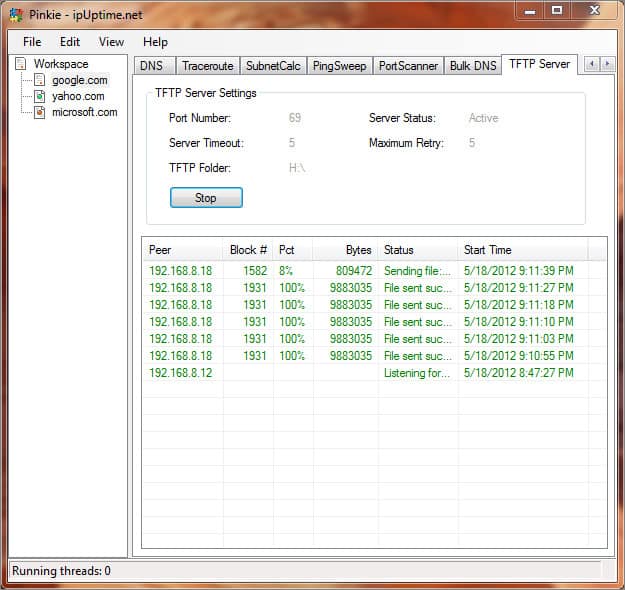
Pinkie is a free Windows-based network monitoring toolset. The different tools in the utility are accessed through tabs at the top of the main dashboard panel of the user interface. This useful little bundle from IPUptime also includes a DNS server, Ping, and Traceroute. The Pinkie TFTP Server just listens. It will pick up any messages sent to its host on port 69.
Pinkie’s key features
- Multi-function utility: Includes network testing Ping and Traceroute services
- TFTP server: Receives files sent by devices on the network
- No encryption: Only for use within a secure network
Unique buying proposition
This is a free Windows suite that offers a tabbed and single-window interface for multiple network tools, like Ping, traceroute, DNS lookup, ping sweep, and port scanner. At the same time, it is simple to use and can provide the functionality you need with minimal effort.
Feature-in-focus: Passive Reception
Pinkie works in the background by listening on UDP port 69. It automatically handles the incoming TFTP transfers without requiring a separate client. This model keeps the whole process simple because, as soon as a device starts a TFTP transfer, Pinkie picks it up and executes it.
Why do we recommend it?
Pinkie is a bundle of useful tools and in many ways, it is very similar to TFTPD64. Both of these systems are free and run on Windows. The main tool at the heart of Pinkie is its Ping implementation, which tests connection conditions. Unlike TFTPD64, there is no TFTP client in this package. However, its TFTP server is respectable and fuss-free.
Who is it recommended for?
This TFTP server is a suitable tool for small networks. A little extra security in the tool would be nice. However, TFTP is an insecure protocol and that isn’t Pinkie’s fault.
Pros:
- Two way: Send and receive files
- Other functions: Subnet calculator, port scanner, and DNS server
- Multi-threaded architecture: Fast transfers
Cons:
- Windows only: Not available for macOS or Linux
The settings for the server can be altered through another tabbed window that can be called up from the top menu. It will overlay the server, so you don’t need to turn it off to access the configuration system. This tool is straightforward and easy to use.
5. SolarWinds TFTP Server
Best for: Reliable transfers across multiple devices.
Relevant for: IT administrators of small enterprises who need reliable TFTP transfers.

The TFTP Server software offered by SolarWinds is a 100% free version that runs on Windows only. It is not an expiring trial. It offers basic functionality such as IP-range lockdown and can transfer files up to 4GB in size. It runs as a Windows service which makes it easier to manage with native Windows tools.
SolarWinds TFTP Server’s key features
- Firmware distribution: Use within a network
- Large files: Although TFTP is usually for small file movements
- Configuration backup: Move configuration images to archive and back again
- Concurrent operations: Manage transfers to and from multiple devices simultaneously
- Reliable: Provided by a reputable brand
Unique buying proposition
A comprehensive TFTP server that can be used to handle a wide range of tasks, like firmware pushes, OS images, concurrent transfers, configuration backups, and more. It can transfer up to 4GB of data simultaneously, and at the same time, you can restrict access by IP addresses and ranges. Such flexibility makes it a handy tool for many organizations.
Feature-in-focus: Multi-threaded Windows Service
You can run SolarWinds TFTP Server as a Windows service to ensure that it remains active in the background. The advantage is that you can use this tool even when no user is logged in, making it a reliable tool for carrying out unattended tasks, like firmware distribution and patch deployment.
Why do we recommend it?
SolarWinds TFTP server is a lightweight file transfer utility, which is exactly what a TFTP server should be. This tool is a fuss-free solution and it is free to use. The program runs on Windows and Windows Server and it can be used to manage the movement of files of u to 4 GB in size, which is large for a TFTP system.
Who is it recommended for?
TFTP lacks security measures so its deployment should be used with caution. Traditionally TFTP is used to move network device images into storage and back again and this is a good use for the SolarWinds system. However, file protection needs to be considered even on a private network.
Pros:
- Maximum file size: 4 GB limit is a large allowance per file
- Constant availability: Run continuously to receive scheduled periodic transfers
- Lightweight tool: Like all TFTP systems, this tool has no encryption
- Local use: TFTP is only for use within secure networks
- Network devices: The server receives files from switches and routers
Cons:
- Made for Windows: Doesn’t run on macOS or Linux
If you only need a TFTP server, then this SolarWinds tool is very attractive. However, it is likely that you need many network monitoring and management tools and so you should also look at the Engineer’s Toolset. That package has more than 60 useful tools and it includes the TFTP server.
You can also take a look at the Small Business Network Management Bundle. That package adds on the Kiwi Syslog Server, Kiwi CatTools, and the Network Topology Mapper to the Engineer’s Toolset.
The best Free Linux TFTP servers
There are a variety of TFTP servers available for most Linux distributions. A popular one is the Advanced TFTP server that comes in a package named atftpd. The ‘d’ at the end of many Linux packages stands for daemon, which is a Unix-like term for an application that runs in the background. A Linux daemon is akin to a Windows service.
The ATFTP server supports multicast and is multithreaded which makes it a little more flexible to deploy in non-standard network installations. Use apt-get or yum to install it, depending on your Linux distribution.
1. atftpd
Best for: Advanced high-throughput Linux TFTP
Relevant for: Linux system administrators and data center engineers.
$ sudo apt-get install atftpd
Reading package lists... Done
Building dependency tree
Reading state information... Done
The following NEW packages will be installed:
 atftpd
atftpd’s key features
- Easy to install: This is a package in Linux
- Free to use: Not a free trial
- Server: Receives files from other devices
Unique buying proposition
Advanced TFTP daemon (atftpd) is a Linux-native multithreaded server that supports all the official TFTP options, like RFCs 1350, 2347, 2348, 2349, 2090, and 7440. Additionally, it supports multicast and mtftp to enable you to deploy firmware across multiple clients at once. Also, you can run it as a standalone daemon or through sockets.
Feature-in-focus: Scalable and Simultaneous Transfers
With atftpd, you can send a single file to multiple clients at the same time. This option reduces bandwidth usage and speeds up tasks like booting devices and updating firmware across multiple endpoints. This tool is also highly configurable, providing the flexibility needed to carry out routine critical tasks.
Why do we recommend it?
The atftpd system is a typical command line system that busy network administrators will enjoy. This is a “set it and forget it” utility for receiving files over TFTP and has very few features – not even a GUI interface.
You’ll find the sparse configuration file for atftpd in `/etc/default/atftpd. Set up some quick options such as what ports to listen on, and whether to run as a daemon or via inet.d, and you’re ready to go.
$catatftpd
USE_INETD=true
OPTIONS="--tftpd-timeout300--retry-timeout5--mcast-port1758--mcast-addr239.239.239.0-255--mcast-ttl1--maxthread100--verbose=5/srv/tftp"
You’ll need a TFTP client. There are many, but the atftp client is a quick and easy command line solution. To install it, use apt-get install atftp. Then connect and upload a file:
$ atftp 192.168.2.146
tftp> put emptyfile
tftp> quit
We can see the emptyfile has been uploaded to the path specified in the config file /srv/tftp
$ ls -l /srv/tftp
-rw-rw-r--1 jdw jdw 0 Nov 510:44 emptyfile
Who is it recommended for?
Network administrators with little time to fiddle with system utilities will appreciate the no-nonsense format of atftpd. There is also an associated free TFTP client available.
Pros:
- Low impact: small resource footprint
- Not encrypted: Only for use on secure networks
- Run as a daemon: Set it to run continuously
Cons:
- No GUI: Only available as a command line tool for Linux
2. tftpd-hpa
Best for: A scriptable TFTP Linux Server.
Relevant for: Linux system administrators, PXE deployers, and network engineers.
Another popular TFTP server for Linux is tftpd-hpa. Since the TFTP protocol is so simple, there are no really obvious advantages to choosing one TFTP server over another. However, due to dependencies and documentation deficiencies, sometimes one server will work better than another. If you’re unable to get atftpd working, give tftpd-hpa a try.
tftpd-hpa’s key features
- TFTP option: An alternative to atftpd
- Small footprint: Doesn’t use many system resources
- Run continuously: A demon for receiving small files
Unique buying proposition
This is a TFTP daemon that’s derived from BSD’s implementation. It supports all modern TFTP options and comes with advanced features like URL rewriting. You can even run it as a standalone daemon or bring it under managed services, making it ideal for both real-time use and lab environments.
Feature-in-focus: URL Rewriting
TFTPD-HPA comes with a powerful option called map-file to rewrite TFTP paths dynamically based on the client’s IP or filename. This feature provides the flexibility to organize client directories and maintain multi-tenant image repositories.
Why do we recommend it?
The free tftpd-hpa is almost identical to atftpd. It would be difficult to recommend one over the other, so both of these command line TFTP servers for Linux are included in this list.
$ sudo apt-get install tftpd-hpa
Reading package lists... Done
Building dependency tree
Reading state information... Done
The following package was automatically installed and is no longer required:
 xinetd
Use 'sudo apt autoremove'to remove it.
Suggested packages:
 pxelinux
The following NEW packages will be installed:
 tftpd-hpa
You’ll find the configuration file in /etc/default/tftpd-hpa:
$ cat /etc/default/tftpd-hpa
 #/etc/default/tftpd-hpa
TFTP_USERNAME="tftp"
TFTP_DIRECTORY="/var/lib/tftpboot"
TFTP_ADDRESS=":69"
TFTP_OPTIONS="--secure"
Modify the settings as desired, then startup the server using sudo service tftpd-hpa restart.
Who is it recommended for?
This TFTP server doesn’t have an associated TFTP client. So, that probably puts this tool in second place behind atftpd. However, if you are having trouble with that other recommended free TFTP server for Linux, try this one.
Pros:
- Encryption-free: Follows the TFTP specification and doesn’t manage encryption
- Limited use: Only for use on a secure private network
- Command line tool: No GUI interface
Cons:
- Not user-friendly: The command line system will only appeal to system administrators
The best macOS TFTP server
1. macOS TFTP server
Best for: Built-in and no-install TFTP server.
Relevant for: Mac users, embedded device developers, and engineers responsible for installing firmware across macOS.
macOS has a built-in TFTP server that won’t be loaded by default. The easiest way to get it running is to simply type:
sudo launchctl load -F /System/Library/LaunchDaemons/tftp.plistThen, provide your password when prompted. You can use something like netstat to confirm it is running:
$ netstat -n | grep *.69
 udp4 0 .69 .*
 udp6 0 .69 .*
The TFTP server is now running on port 69 waiting for connections. You can use any TFTP client to connect to the server and upload or download files. To shut down the TFTP server, simply use the unload command:
sudo launchctl unload -F /System/Library/LaunchDaemons/tftp.plistmacOS TFTP Server’s key features
- Made for Macs: Only available for macOS
- Already on your Mac: You just have to activate it
- Free forever: Not a free trial
Unique buying proposition
macOS comes with a built-in TFTP server, and no downloads or extra setup are required. It can be executed directly via the Terminal. Also, this TFTP server uses minimal resources and runs in the background, making it ideal for anyone who wants to work within the Apple ecosystem.
Feature-in-focus: System-level Launch
You can control the macOS TFTP server through the LaunchCTL command. This means the TFTP is highly configurable, as you can set the TFTP root folder, program the required arguments, change the service activation settings, and more.
Why do we recommend it?
The macOS TFTP server is built into the macOS operating system. It doesn’t have a GUI, so you need to open a Terminal window to launch it. This is a no-frill receiver of files through the TFTP system.
Who is it recommended for?
Network administrators that use a Mac for managing the system will turn to this command line tool as a first choice.
Pros:
- A rare tool: There aren’t many TFTP programs available for macOS
- Command line: No GUI interface
- Low impact: Doesn’t use many system resources
Cons:
- Not for end users: This is a technician tool
Our methodology for choosing free TFTP servers for Windows, Linux, and Mac
At Comparitech, we evaluated free TFTP servers based on how effectively they support reliable file transfers. In particular, our selection process focused on tools that offer dependable support for a wide range of administrative tasks. The specific factors we considered are:
1. Cross-Platform Availability
Given the variety of platforms used in environments today, we wanted to present tools that support major operating systems, including Windows, Linux, and macOS, along with all popular applications. Such versatility can give administrators greater flexibility when selecting a deployment environment.
2. File Transfer Reliability
We looked at how well a TFTP transfer files consistently, particularly when distributing firmware, configuration backups, or boot images. We favored tools designed to handle these operations with minimal interruption.
3. Device Provisioning Support
Many organizations use TFTP servers to deploy and maintain network devices. To support this requirement, we selected tools that simplify provisioning workflows for routers, switches, IP phones, and other compatible hardware. At the same time, our tools provide the required control and visibility.
4. Configuration and Access Controls
While TFTP offers limited native security, server implementations can provide administrative controls that reduce operational risks. We looked for tools that include directory restrictions, transfer permissions, address filtering, or similar management features that will streamline access for users.
5. Logging and Transfer Monitoring
We preferred servers that provide activity logs and transfer records for administrative review. Those tools that had audit logging also scored higher on our list.
Broader B2B software selection methodology
Besides the above features, every feature goes through our standard review methodology, where we check if a tool matches the criteria below.
- Scalability
- Quality of vendor support
- Ease of use
- Flexible deployment and implementation for multiple use cases
- Positive user reviews
- Pricing transparency
Check out our detailed B2B software methodology page to learn more.
Why Trust Us?
At Comparitech, we use a transparent and consistent process when reviewing network administration tools. We evaluate products against the same technical criteria and focus on the capabilities that matter for real operational use rather than marketing claims. Our editorial recommendations are independent of vendors, and our goal is to provide clear, unbiased guidance that helps readers compare options and choose tools with confidence. All this means you can trust our reviews to be fair and unbiased.
Final words
Although TFTP does not incorporate any security procedures, this lack of security is not unique among networking administration systems. DHCP and the widely implemented SNMPv2 do not include security measures. Make sure you only implement TFTP on a secured private network.
TFTP Server Software FAQs
How to set up DHCP for TFTP servers list
In Linux, use the following command structure to set up a list of TFTP servers for DHCP:
config system dhcp serveredit <server ID>set tftp-server <hostname/IP address> <hostname/IP address>nextend
Just list the IP addresses of your TFTP servers separated by spaces.
How to find my TFTP server IP{ address
On Windows, in a command prompt window, issue the command:
netstat -an|more
On Linux, the command is:
netstat -an|grep 69
TFTP uses UDP port 69, so look for an entry in the results list that uses that port in order to identify the IP address of your TFTP server. The relevant line in the results list will be
udp <IP address>:69
How do I copy my router settings to a TFTP server?
Make sure that your TFTP server is running then connect to the device through SSH.
- Issue the command copy running-config tftp
- Enter the IP address of your TFTP server when prompted.
- Enter a file name where the configuration will be saved when prompted.
The extract will take place.
Why does my Linux system fail to network boot with TFTP errors?
A failure for Linux to load could be due to the kernel in the netboot image being incompatible with the kernel module packages due to a patch. Another reason could be insufficient base memory making the install process hang indefinitely or fall over.