One of the most frequent tasks that network or systems administrators perform – both during the initial deployment and as part of ongoing day-to-day operations – is the creation and management of user accounts within Windows Server environments. This responsibility extends not only to system administration but also to the applications running on those servers.
Within the Windows Active Directory (AD) framework, administrators can configure a variety of user account types, each tailored with specific permissions, access rights, and roles. These different account types are essential for maintaining proper access control and ensuring the security and functionality of the system. Among the most important account types are service accounts, which are often used to allow applications and services to run under specific security contexts.
In this article, we will focus on AD service accounts, detailing what they are, why they are critical for secure system operations, and how to create them using PowerShell. We will also highlight the best tools available for efficiently managing these service accounts within an AD environment. Understanding how to properly create, configure, and manage AD service accounts is essential for maintaining a secure and well-managed Windows Server infrastructure. By mastering these processes, administrators can ensure that the right level of access is granted to applications, minimizing security risks while optimizing system performance.
What is a Service Account?
A service account is a user account that is created explicitly to run a particular service or application on the Windows operating system. If you create service accounts when installing applications that request them, they usually grant the appropriate rights and security permissions when the accounts are created. This is done following the principle of least privilege, which grants users only the minimum rights and permissions they require.
For example, if a service account is created for backup service it does not require rights to change systems settings. A service account that is created to run the SQL Server service does not require access to execute applications. Following the principle of least privilege, a user account with just the right amount of access is created as a service account. You may often be tempted to use an administrator account for a service account since usually they already have the necessary rights and permissions. But don’t fall for it. The advantage of the service account is that if the user account used for the service was to become compromised, the damage that could be done using that service account is minimized.
To understand a bit better why a service account is required, let’s look at what happens when a service account is not used. When you install applications such as SQL Server, Internet Information Services (IIS), or SharePoint Services on Windows server OS like Windows Server 2012 R2, it is not uncommon for the application to ask for a username and password that will be used to run it. In order to get the application to work, a lot of administrators will simply enter a user account that has domain administrator access. There are a number of problems with this approach.
Firstly, If you use the same user account for a different number of applications, and the user account fails due to one reason or the other, all the applications using that service account would also be affected. Secondly, if the account becomes compromised, this service account could be used to gain access to resources on the network. The more access the service account has the more potential damage that it could do. Thirdly, the service account could prevent applications and services using it from running by simply changing the password of the account.
When the password for a service account is changed, the password must be updated in all locations that use the service account. Otherwise, the old password will still be used and this will prevent the application from running. If all of your essential services are using the same service account and the password is changed, this will cause all the services relying on that service account to stop working, thereby resulting in a denial of service. Although service account passwords are usually configured not to expire; however, the implication is that when you have an account password that doesn’t expire, the password becomes much more vulnerable over time.
Managed Service Accounts
After considering all those challenges, Microsoft introduced Managed Service Accounts (MSA) with Windows Server 2008 R2 to automate the management of service accounts. Using managed service accounts means that the password cannot be locked out or used for interactive login. Instead, the service account will be automatically changed periodically without any intervention from the system administrator. The MSA is bound to one computer and thus cannot be shared among multiple computers, or a computer that it was not designed to work with. This provides additional security. The MSA can be categorized into the following groups:
- Standalone Managed Service Account (sMSA): sMSA is a managed domain account that provides automatic password management, simplified Service Principal Name (SPN) management, and the ability to delegate it to other administrators. The sMSA was introduced in Windows Server 2008 R2 to automatically manage (change) passwords of service accounts. With sMSA, system admins can mitigate the risk of system accounts running system services being compromised. However, one major issue with sMSA is that the usage of such service accounts is restricted to only one computer. This means that sMSA cannot work with cluster or Network Load Balancing services, which operate simultaneously on multiple servers or server farms and use the same account and password.
- Group Managed Service Account (gMSA): To fix issues associated with the sMSA, Microsoft introduced the Group Managed Service Accounts (gMSA) to Windows Server 2012. gMSA provides the same functionality within the domain but also extends that functionality over multiple servers. When a gMSA is used as service principals, the Windows operating system manages the password for the account instead of relying on the administrator to manage the password.
How to Create Service Account in PowerShell
Windows PowerShell is a command-line shell and scripting language built on the .NET Framework to enable system administrators to automate task and configuration management on Windows OS and applications that run on the Windows Server environment. In PowerShell, administrative tasks are generally performed by cmdlets (pronounced command-lets), which are specialized .NET classes that implement specific functions.
In Windows Server 2012, the PowerShell cmdlets default to managing the group MSAs rather than the original standalone MSAs. To create a group Managed Service Accounts (gMSA), follow the steps given below:
Step 1: Create key distribution services (KDS) Root Key.
This is used by the KDS service on the domain controller (DC) to generate passwords. To create the root key, open the PowerShell terminal from the Active Directory PowerShell module and run the following cmdlet:
Add-KDSRootKey -EffectiveTime ((Get-Date).AddHours(-8))
The 8 hours specified above imply that the Active Directory distribution service replication has within that time frame to replicate the changes to other domain controllers. You can use the following code if you’re in a test environment:
add-kdsrootkey -EffectiveImmediately
You confirm if the key was successfully created by running the following PowerShell command:
Get-KdsRootKey
Step 2: Create and configure gMSA.
To do this, open the PowerShell terminal and type the following commands:
New-ADServiceAccount –Name gserviceaccount1–DNSHostname DC1.comptech.com –PrincipalsAllowedToRetrieveManagedPassword "gserviceaccount1Group"
From the above command,
- The gserviceaccount1 represents the name of the gMSA account to be created
- The DC1.comptech.com is the DNS server name
- The gserviceaccount1Group is the Active Directory group which includes all systems that have to be used. This group should be created before in the Groups.
To confirm that the account has been created, go to Server Manager >> Tools >> Active Directory Users and Computers >> Managed Service Accounts.
Step 3: Install the MSA on a host computer in the domain, and make the MSA available for use by services on the host computer.
To install gMSA on a computer, open PowerShell terminal and type in the following commands:
Install−ADServiceAccount −Identity gserviceaccount1
To confirm that the installation of the gMSA was successful, run the following command:
Test−ADServiceAccount gserviceaccount1
If the installation was successful, the result should return “True” after running the command as shown in the screenshot below.
Step 4: Configure a service to use the account as its logon identity.
To do this, follow the steps below:
- Open Server Manager.
- Click Tools >> Services, to open the Services console
- Double-click the service to open the services Properties dialog box
- Click the Log On tab
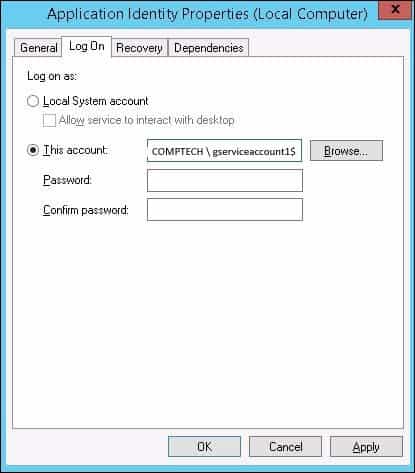
- Select “This Account”, and then click Browse
- Enter the name of the MSA on the text box, and then click OK to save changes
- On the Log On tab, confirm that the MSA name ends with a dollar ($) sign
- When it states that the new logon name will not take effect until you stop and restart the service, click OK.
The account will be given the “Log On as a Service” and the password will be retrieved automatically. If you move a service to another computer and you want to use the same MSA on the target system, you must first use the Uninstall-ADServiceAccount cmdlet to remove the MSA from the current computer and then use the Install- ADServiceAccount cmdlet on the new computer.
However, not everyone is comfortable using PowerShell scripting. Also, it helps to have tools that monitor managed service accounts and provide comprehensive insights on password management, privilege access management, account sprawl, and more. Some key pain points that these tools can solve are:
- Manual password rotation and tracking.
- Service outages due to expired passwords.
- Increased threats and risks that come with reusing passwords.
- Poor traceability of issues.
- Lack of visibility into potential threats.
- Inability to meet audit and compliance requirements.
Choosing the right AD service account management tool can address the above pain points.
Tools for Managing AD Service Accounts
Based on our independent research, selection requirements, and rating methodologies, these are the best AD service account management systems on the market today:
- ManageEngine ADAudit Plus (FREE TRIAL) A package that includes a file integrity monitor, tamper protection for AD, and insider threat detection. Available on Windows Server, AWS, and Azure.
- ManageEngine MSA Management This reporting tool focuses on the managed service accounts held within your AD implementation. Runs on Windows and Windows Server.
- Quest Recovery Manager for Active Directory A protection system for Active Directory that backs up an instance and restores objects in the event of loss or unauthorized changes. Runs on Windows Server.
Key points to consider before choosing an AD service account management system
A lot of thought and effort go into selecting the right software tool that addresses your organization’s requirements and pain points. More importantly, your selected tool must fit well with your tech stack and offer the benefits that you expect. While choosing the right AD service account management system, here are a few aspects to consider.
- Automation of Password Management: Look for tools that can automate password rotation and management to reduce human errors in password handling.
- Discovery: It’s good to have automatic discovery capabilities, where the tool can identify all the service accounts and map their usage.
- Reporting: Make sure to select a tool that can generate extensive reports to provide the insights you need for troubleshooting and proactive monitoring.
- Integration: Your selected tool must integrate well with your tech stack and existing workflows.
- Access Controls: For more security, your tool must offer security features like access controls.
You can read more about each of these tools in the following sections.
1. ManageEngine ADAudit Plus (FREE TRIAL)
Best for: Service account activity monitoring.
Relevant for: System administrators and IT auditors managing AD service accounts.
Price: The annual subscription fee starts at $595 for the Standard edition and $945 for the Professional edition.

ADAudit Plus by ManageEngine is an AD auditing tool that allows network admins to audit active directories, login and logoff records, file, and Windows server data, and generate real-time user activity reports.
ManageEngine ADAudit Plus’s key features
- Real-time Auditing: Supports the auditing of AD, file servers, Azure AD tenants, workstations, and Windows servers in real time.
- User Behavior: Analyzes user behavior using machine learning algorithms to identify risky users.
- File Activities: Tracks file creation, modification, and deletion to safeguard your critical data.
- Compliance: Meets the compliance requirements of standards like SOX, PCI, HIPAA, GDPR, and more.
- Integrations: Seamlessly integrates with popular SIEM tools.
Unique buying proposition
Logs server activity in real time to track the services that run under your account and generate usage reports. Its proactive alerts can catch traffic spikes and failures due to password expiry, while its analytics can help identify if an account is orphaned or misused.
Feature-in-focus: Reporting
A highlight of ADAudit Plus is a feature called User Services, which shows all the Windows services running on every monitored host. You can filter this data by domain, computer, or account to know which services run through which accounts. This can help with troubleshooting and preventing attacks.
Why do we recommend it?
ManageEngine AD Audit Plus is a very broad package for user account auditing. This remit spans checks on accounts within Active Directory and also analysis of account usage. First of all, the tool logs all changes to records in your AD domain controller. This is combined with alerts for record updates, which should make it difficult for an unauthorized user or intruder to sneak in changes to account permissions without the system administrator noticing. Other security features include records of login and logoff activity and specific user activity tracking for behavior analysis.
With this tool, you can keep track of which employees or service accounts did what, when they did it, and how they did it on Windows servers and installed applications. You can get reports on domain controllers and file servers and export the reports to CSV, PDF, XLSX, and HTML formats. Network admins will be able to block or prevent legitimate users from abusing their access privileges. One of the key benefits of this solution is its inherent support for industry-specific regulatory compliance. It is bundled with pre-configured standards compliance reports, which follow the SOX, HIPAA, GLBA, PCI-DSS, and FISMA standards. So, you won’t need to customize the system or set up your own reports in order to demonstrate compliance.
Who is it recommended for?
This system is important for any business that uses Active Directory for its access rights manager. However, those organizations that need to prove compliance with data protection standards particularly need to have a system like ADAudit Plus. This tool provides the necessary activity logs and reporting to prove compliance with GDPR, CCPA, PCI DSS, HIPAA, and PCI DSS.
ADAudit Plus is available in three editions: Free, Standard, and Professional. A 30-day free trial and an online demo which includes all features of Professional Edition are all available. Overall, ADAudit Plus’ great dashboard and analytics makes it a powerful tool to gain insights and visibility into your AD environment.
Pros:
- Compliance: Focused heavily on compliance requirements, making it a good option for maintaining industry compliance
- Reports: Preconfigured compliance reports allow you to see where you stand in just a few clicks
- User Activity: Features insider threat detection – can detect snooping staff members or blatant malicious actors who have infiltrated the LAN
- Automation: Supports automation and scripting
- Easy to Use: Great user interface
Cons:
- Not Ideal: Better suited for larger environments
EDITOR'S CHOICE
ManageEngine ADAudit Plus is the top tool on our list as it strikes a good balance between usability and focusing on the real-world issues that come with using Active Directory. One area that stands out for us is its ability to provide detailed and contextual information about every issue, so that it can be resolved quickly. Its lockout investigation, service account tracking, and password expiry alerts improve the overall security posture of your organization.
Download: Start a 30-day FREE Trial
Official Site: https://www.manageengine.com/products/active-directory-audit/download.html
OS: Windows Server
2. ManageEngine MSA Management
Best for: MSA lifecycle control.
Relevant for: MSPs and small IT teams handling gMSA/MSA.
Price: Subscription starts at $595, while a perpetual license starts at $1,485.
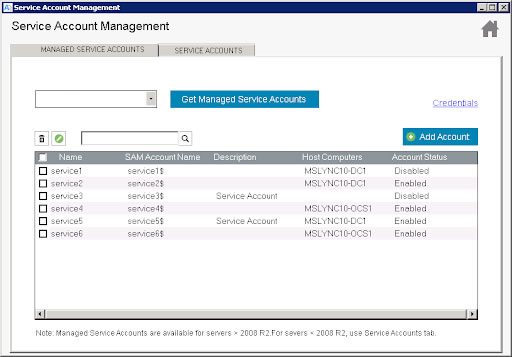
Creating and managing an MSA can be a daunting task for most system admins, especially because it demands a good hands-on knowledge of PowerShell scripting language. Even if you are skilled in PowerShell scripting, it’s not as easy as using a GUI-based tool. This is where the MSA Management tool from ManageEngine comes to the rescue.
With just a few clicks, network admins can easily create, edit, and delete MSAs without the knowledge of PowerShell.
ManageEngine Service Accounts Management Tool’s key features
- MSA Activities: Enables you to create, edit, and delete MSAs.
- Intuitive User Interface: You don’t need PowerShell scripts for automation, as these can be done through an interface.
- Bulk Account Management: Supports bulk actions on accounts.
- Reports: Generates reports on account status for analysis and audits.
Unique buying proposition
This is a lightweight GUI tool that allows administrators to manage MSAs without PowerShell scripting, making it ideal for technicians with limited expertise. It also allows users to create and edit. Enable, disable, and delete MSAs in bulk, and the reports are extensive as well. With all these features, it provides excellent control and visibility into MSAs.
Feature-in-focus: Bulk MSA Reporting
The bulk reporting feature is handy for IT administrators as it provides all the required information about MSAs associated with a particular domain. All the relevant information, like name, description, and status of each MSA, is displayed in a table for easy reference. This presentation also makes it easy to perform bulk actions.
Why do we recommend it?
Dealing with the GUI window of this tool is a lot easier than running PowerShell. You can query and list accounts and see their statuses in a clearly presented table.
The tool also enables network admins to gain insights into the service accounts present in each computer in an Active Directory domain. Some of the reports that can be generated include:
- A list of all computers in the domain
- A report of all service accounts present in each computer
- A report of all services associated with the service accounts
These reports can be fine-tuned using available filters and can be exported as a CSV file.
Who is it recommended for?
You might have opted not to create managed service account because you didn’t want to get into the complications of using PowerShell. Fortunately, you don’t need to let that skill requirement put you off anymore.
Pros:
- Easy to Use: Offers a simple GUI alternative to PowerShell MSA scripts
- Flexible: Supports bulk action such as account permission changes and disable
- Multiple Formats: Can run reports and save data to CSV format
- Free: Is completely free
Cons:
- Fewer Visualizations: Could benefit from some graphs and data visualization
3. Quest Recovery Manager for Active Directory
Best for: Granular AD restoration.
Relevant for: AD infrastructure teams and IT and security teams of enterprises.
Price: Negotiated pricing.

Human error, hardware, and software crashes do occur. AD objects including service accounts can often be mistakenly modified or even deleted; and faulty scripts can overwrite attributes. This can result in a corrupt Active Directory or Group Policy data, unplanned system downtime.
Quest Recovery Manager for Active Directory’s key features
- Comprehensive Recovery: Backs up and restores AD accounts without requiring a device restart.
- Flexible Backup: Backs up and restores AD accounts without requiring a device restart.
- Recovery Reports: Generates detailed recovery reports to offer complete visibility over your AD backup process.
- Unified Dashboard: All data related to both hybrid AD and Entra ID are displayed through the same interface.
Unique buying proposition
Using this tool, you can quickly roll back changes at both the object and attribute levels without having to reboot the domain controllers. Moreover, it integrates with Change Auditor for tracking the modifications made. Its other features, like secure backup storage and recovery wizards, support AD forest recovery.
Feature-in-focus: Comparison Reports
One of the standout features of this tool is its comparison reports, which enable you to see what has changed and who has modified it. You can compare different backup versions or even a specific version with the live site to understand the changes. Accordingly, you can roll them back.
Why do we recommend it?
Quest Recovery Manager for Active Directory provides a fast backup and recovery service for AD instances. The tool can also be used to spot unauthorized changes to DC contents by comparing the live system to the backup. This tool can be used for Azure AD as well as Windows Server Active Directory.
Recovery for Active Directory is a third-party AD tool that enables network admins to pinpoint changes to their AD environment at the object and attribute level, and quickly recover entire sections of the directory (both on-premise AD and Azure AD), selected objects, or individual attributes without taking the AD controller offline. Most times, when an object such as a user or service account is lost in Active Directory, you have to restart the Domain Controller to recover it. Recovery Manager for Active Directory eliminates this inconvenience by allowing you to recover objects without going offline.
You can restore objects such as users, service accounts, computers, attributes, configurations, sites, subnets, group policy objects, and organizational units.
Who is it recommended for?
There is a native backup system built into Windows Server that covers Active Directory, so you might balk at paying for a third-party tool for backup. However, this system is much faster at recovering data than the system is easier to manage than the Windows Server backup system. This tool can also be used for constant audits to detect and remove unauthorized changes.
Pros:
- Efficient: Lightweight tool that can run on limited resources as well as older AD environments
- Detailed Audits: Supports changelogs for in-depth audits
- Simplified Restoration: Offers a recovery matter that simplifies restoring AD objects
- Configurations: Supports scheduled scans and config backups
Cons:
- Better Layouts: The user interface could use improvement.
The main issue with Recovery Manager for Active Directory is that it comes at a relatively high price. It is therefore most suitable for organizations running multiple AD domain controllers across multiple locations. A free 30-day trial is available.
Our methodology for choosing AD service account management systems
Service accounts support critical business applications, yet they are frequently overlooked because they operate in the background. Nevertheless, they need regular monitoring to ensure their optimal health and performance. To help you pick the right service account management systems, we did thorough research to come up with the top tools that can improve visibility, strengthen account governance, and reduce the risks associated with unmanaged credentials. Some of the factors we looked at are:
1. Service Account Discovery and Inventory
As a first step, we wanted to remove manual effort, and this is why we looked for tools that could automatically identify service accounts across Active Directory. Along with discovery, we also checked if the tools can maintain an accurate inventory of where each service account is used.
2. Credential Management
Service account credentials remain unchanged for long periods, increasing security risks. To address this problem and improve the overall security of your organization, we favored solutions that automate password management and rotation while minimizing disruption to the applications and services that rely on those accounts.
3. Permission and Access Controls
Along with old passwords, excess privileges are another security risk, especially when these accesses are given for specific tasks and remain long after the task is completed. Also, overprivileged service accounts can create unnecessary security exposure. We looked for tools that help administrators review permissions, identify excessive privileges, and maintain appropriate access levels through simple interfaces.
4. Monitoring and Activity Tracking
A core factor was activity tracking because service accounts without oversight can lead to security and compliance costs for organizations. In this sense, it made sense for us to look for platforms that monitored authentication activity, recorded account changes, and enabled administrators to identify unusual or unauthorized behavior. Also, tools that helped maintain internal security standards and regulatory compliance were preferred.
5. Integration with AD and Tools
We included solutions that integrate with Active Directory and related identity management systems, so it is easier to manage accounts alongside broader identity and access management activities.
Broader B2B software selection methodology
Besides the above factors, every review goes through a standardized process that ranks tools based on the following factors.
- Positive user reviews
- Scalablity
- Application across real-world use cases
- Quality of vendor support
- Usability
- Pricing transparency.
Learn more about our B2B software methodology.
Why Trust Us?
Comparitech has extensive experience evaluating identity management, network administration, and cybersecurity software for enterprise and SMB environments. We use a structured and transparent review process that applies the same technical criteria to every product, making our comparisons fair and consistent. Such an unbiased approach makes us the top choice for millions of decision-makers looking for honest reviews.