


Want to set up a VPN on Synology NAS? In this guide, I explain how to configure your Synology NAS as a VPN client using a consumer VPN plan. This lets your NAS route traffic through an encrypted VPN tunnel, helping you protect downloads, keep NAS traffic private, and use NAS apps through a server located abroad.
If your VPN does not support inbound connections, you still have options. You can use Tailscale, QuickConnect, a Synology Router, or the Synology VPN Server package from Package Center to create a private VPN. These methods let you access files and home network resources while traveling.
Keep reading to learn how to set up a Synology VPN. I’ve included instructions for IP and DNS leak tests, plus fixes for slow speeds, dropped connections, and MTU issues.
Why set up a VPN?
A Synology NAS handles sensitive internet traffic. It may download files, sync backups, run apps, manage Docker containers, or connect to cloud services in the background. A consumer VPN helps protect that traffic by routing it through an encrypted tunnel to a VPN provider’s server.
Using a consumer VPN on a Synology NAS is the best setup for most people because it offers strong privacy and better usability, especially if you choose a VPN with port forwarding. A VPN with port forwarding can also let you connect back to selected NAS services remotely without exposing your home IP address to other users.
You only need to run your own VPN server on a NAS if you specifically want to route your internet traffic through your home IP address while traveling. This setup is more niche, and most readers will prefer a consumer VPN like NordVPN or Surfshark. However, I have still included instructions to roll your own VPN later in this guide.
Here are the main reasons to use a VPN on Synology NAS:
Keep NAS traffic private
A VPN encrypts the internet traffic leaving your NAS. This helps stop ISPs, local networks, public Wi-Fi providers, and other snoops from seeing what your NAS apps do online. This is especially useful if you use Download Station, torrent clients, indexers, or other apps that regularly connect to third-party servers.
Hide your real IP address during downloads
If you use your NAS for peer-to-peer downloads, other peers may be able to see your home IP address. A consumer VPN routes that activity through the VPN server instead. This helps prevent strangers from seeing your residential IP and probing your home network for open ports or other weaknesses.
Use NAS apps through another location
A VPN client lets your NAS use a VPN server in another country. This can help if you want NAS apps to connect through a specific region, avoid ISP throttling, or use services that behave differently depending on location. You can usually do this with OpenVPN, an .ovpn file, or sometimes WireGuard, depending on the VPN provider.
Improve remote access options
A VPN can also help with remote access, but the setup matters. A consumer VPN mainly protects traffic leaving your NAS. To connect back to your NAS through a VPN provider’s IP address, you need port forwarding. If you want to run your own private remote-access tunnel, you can use the Synology VPN Server package in Package Center, Tailscale, QuickConnect, or a Synology Router setup.
Reduce DNS and IP leak risks
A trusted VPN routes DNS requests through the secure VPN tunnel. After setup, you should run an IP leak test and DNS leak test from the NAS traffic path, not just from your laptop. This confirms your NAS traffic is using the VPN IP and VPN DNS servers.
The easiest way to set up a VPN on Synology NAS
The easiest way to set up a VPN on a Synology NAS is to configure it as a VPN client using a consumer VPN plan. This setup routes your NAS internet traffic through a secure VPN tunnel, allowing you to download files, use torrent clients, indexers, Docker containers, and NAS apps with added privacy.
How to install NordVPN, Surfshark, or another consumer VPN on Synology NAS:
- Subscribe to a VPN service that offers manual VPN setup on Synology NAS. I recommend NordVPN because it is fast, secure, and supports manual OpenVPN setup on Synology. Alternatively, Surfshark is a good low-cost option with its own Synology NAS setup guide.
- Download your VPN’s OpenVPN configuration file and setup details. WireGuard and L2TP/IPSec may also be available for manual setup, so check with your provider.
- Make a note of your VPN username and password. These may be different from the email and password you use to log in to your VPN account. Also, make note of any other information needed to set up the VPN connection, such as the server address. You can find these details in the member’s area of your VPN provider’s website.
- Log in to your Synology NAS and open DiskStation Manager (DSM). Then go to Control Panel > Network > Network Interface. This is where Synology lets you create and manage VPN profiles.
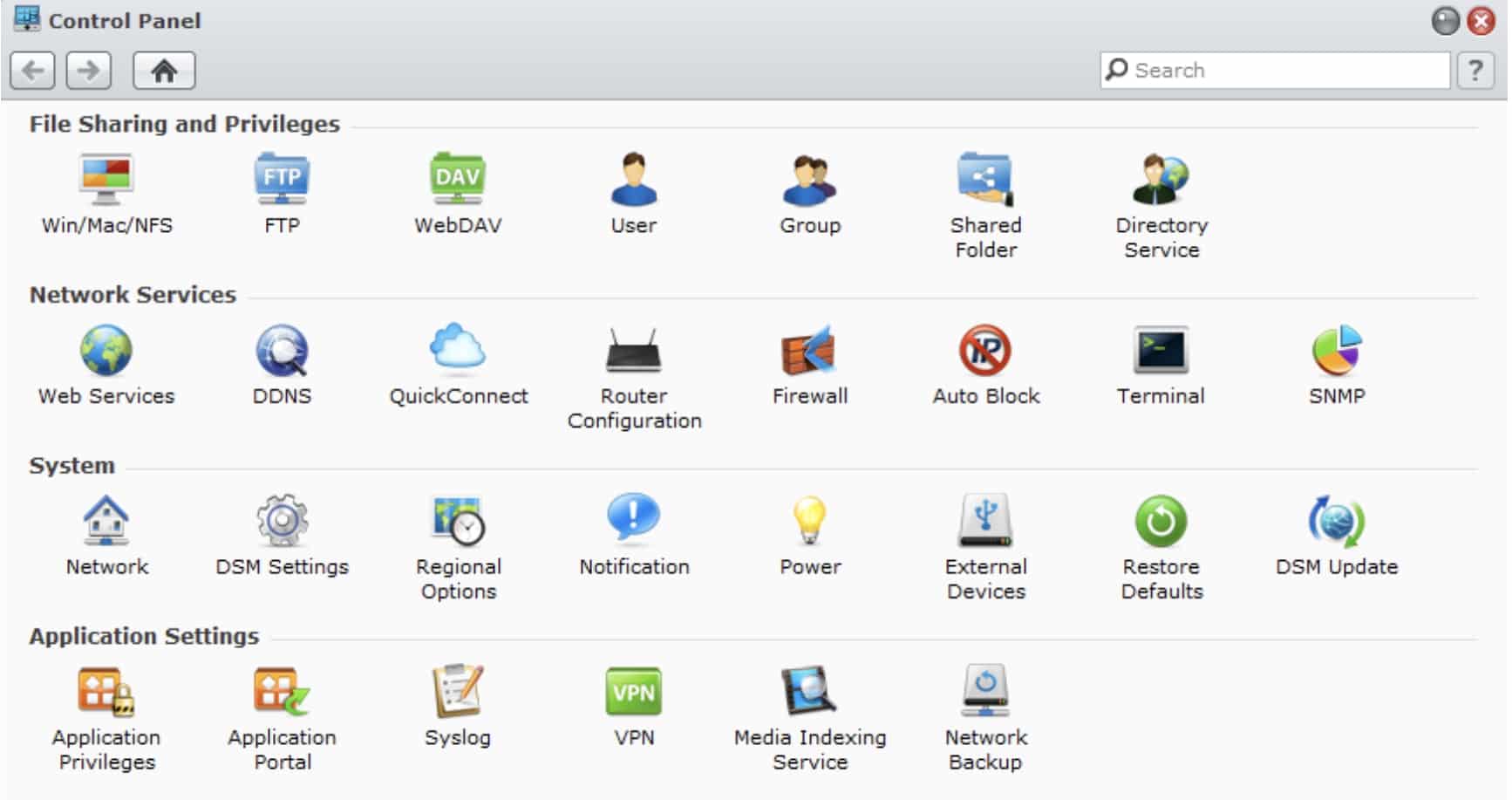
- Create a new VPN profile. In newer versions of DSM, go to Control Panel > Network > Network Interface, then click Create or Create VPN Profile and select OpenVPN. In older DSM versions, you may need to open the VPN icon from Control Panel instead.
- Import the .ovpn file you downloaded from your VPN provider’s website. It contains the server address, protocol, port, and encryption settings. If your VPN provider offers both TCP and UDP OpenVPN files, I advise UDP. UDP is faster and works better for NAS tasks.
- Enter your VPN credentials. Enter your manual VPN username and password, plus any extra setup details required by your VPN provider.
- Connect your Synology NAS to the VPN. Save the profile, select it, and click Connect. The status should change to Connected.
Now that your VPN is set up and connected, check whether the NAS is routing traffic through the VPN. The easiest way is to use an app running on the NAS, such as Download Station, a torrent client, or a Docker container, and confirm that it reports the VPN IP address rather than your home IP address. I’ve included the easiest IP check methods for Synology NAS below.
You can check the VPN profile in Network Interface occasionally to confirm it still shows as Connected. This is the fastest way to check that the VPN is working.
How to check if your Synology NAS is using the VPN
Here’s how to check if your Synology NAS is using the VPN:
- Open your torrent client on your Synology NAS. You can use Download Station or a Docker-based torrent client. If you do not already have one installed, open Package Center, search for Download Station, and install it.
- Visit a torrent IP check website on your computer. These sites provide a test magnet link or torrent file that reports the IP address your torrent client uses.
- Copy the test magnet link or download the torrent file. Save the torrent file to your computer if needed.
- Add the test torrent to the torrent client running on your Synology NAS. Make sure you add it to Download Station or the torrent client on the NAS, not a torrent client on your computer.
- Check the IP address shown by the torrent IP checker. The checker should display the IP address used by your Synology NAS torrent client.
- Confirm the result. If it shows your VPN IP address, your NAS torrent traffic is using the VPN. If it shows your home IP address, your NAS traffic is not routing correctly through the VPN.
How to check Docker containers are using the VPN on Synology NAS
If you aren’t interested in torrenting, you don’t need to install a torrent client just to check whether your VPN is working. Instead, you can use Docker to check which IP address a container on your Synology NAS uses.
This method is useful because it tests traffic from a container running on the NAS itself. Keep in mind that Docker containers can use different network settings, so check privacy-sensitive containers separately. Some containers may not automatically route traffic through the VPN profile created in DSM.
The simplest way to check is to open the container’s terminal and run an IP-check command:
curl ifconfig.me
or:
wget -qO- ifconfig.me
If the result shows your VPN IP address, that container is using the VPN. If it shows your home IP address, the container is bypassing the VPN and needs a separate network configuration.
For privacy-sensitive containers, such as torrent clients, indexers, or download managers, always confirm the IP address before relying on the VPN.
How to set up a VPN with port forwarding
If you want to access resources on your NAS remotely with added privacy, the best option is to connect via an encrypted VPN tunnel that forwards ports back to your Synology NAS. The only requirement is a VPN that supports port forwarding. Here are the steps:
- Choose a VPN with port forwarding. I recommend PrivateVPN, PIA, or Proton VPN because they are secure VPNs that allow port forwarding for remote NAS access.
- Choose a VPN server that supports port forwarding. Not every VPN server supports inbound connections, so pick a compatible location before downloading any setup files.
- Download the VPN setup files for that server. Most VPNs require manual OpenVPN setup on a Synology NAS, so download the correct .ovpn file and manual VPN credentials.
- Connect your Synology NAS to the VPN server. Import the .ovpn file into Synology, enter your credentials, and connect.
- Make a note of the forwarded port. Your VPN provider will assign or display the open port. You will need this to configure remote access to your NAS service.
- Choose the NAS service you want to access remotely. This could be a media server, file service, download manager, or another Synology app. Avoid exposing the DSM admin panel unless you understand the risks.
- Configure the NAS service to use the forwarded port. The service must listen on the port assigned by your VPN provider, or you must route the forwarded port to the correct local service.
- Connect using the VPN IP and the forwarded port. From outside your home network, connect to the VPN provider’s IP address and the forwarded port to reach your NAS.
- Test from another network. Use mobile data or a different wifi network to confirm that remote access works.
- Lock down access. Use strong passwords, limited user permissions, and MFA where available. Port forwarding hides your home IP, but the exposed NAS service still needs proper security.
This setup is ideal if you want private remote access to selected Synology NAS services without exposing your home IP address. It gives you the usability and security features of a commercial VPN, while letting other users connect through the VPN provider’s IP address instead of your residential IP.
The only drawback is that it will not let you use your home IP address while traveling. To do that, you will need to set up your Synology NAS as a VPN server.
Security considerations when accessing Synology NAS remotely
Remote access is useful, but you should avoid exposing more of your Synology NAS than necessary. If you use port forwarding, only expose the specific NAS service you need.
Avoid exposing the DSM admin panel directly to the internet. DSM controls your entire Synology NAS, so attackers could brute-force passwords, exploit vulnerabilities, or scan it for misconfigured services. If they gain access, they could view files, change settings, install malicious packages, or lock you out of your own NAS.
For the best security, use a dedicated user account with limited permissions, enable MFA on any exposed NAS service that supports it, and keep your NAS, packages, and VPN configuration up to date.
If you expose a service that doesn’t support MFA, use a strong, unique password, limit user permissions, and use firewall rules wherever possible. You should also avoid exposing admin panels unless necessary.
Synology VPN troubleshooting
If your Synology VPN is not connecting, keeps dropping, or fails to route traffic correctly, try these fixes:
- Check your VPN credentials. Manual VPN setups often use different credentials from your normal account login. Check the manual setup username and password in your VPN provider’s member area.
- Download a fresh .ovpn file. If OpenVPN will not connect, download a new .ovpn file from your VPN provider. Server addresses, certificates, ports, and configuration files can change.
- Try a different VPN server. The server you selected may be congested, offline, or blocked. Try another server location, especially if you need a specific feature like port forwarding.
- Check your router or firewall. If you are running Synology VPN Server, make sure the correct port is open on your router and allowed in the Synology firewall. For OpenVPN, this is usually UDP 1194, unless you changed it.
- Check for CGNAT or double NAT. If remote access to your Synology VPN Server does not work, your ISP may use CGNAT, or your home network may have two routers. In that case, normal port forwarding may fail.
- Restart the VPN profile. Disconnect and reconnect the VPN profile in Network Interface. If that fails, restart the NAS or recreate the VPN profile from scratch.
- Check DNS settings. If the VPN connects but apps fail to load websites, your NAS may have a DNS issue. Try your VPN provider’s DNS servers or a trusted public DNS resolver.
- Confirm the NAS is actually using the VPN. Use Download Station, a torrent IP checker, or a Docker container to confirm the NAS traffic is using the VPN IP.
- Adjust the MTU if the connection is unstable. If your Synology VPN connection keeps dropping, you may need to adjust the MTU (Maximum Transmission Unit). Lowering the MTU can sometimes fix packet fragmentation, timeout errors, or unstable VPN connections. Try reducing it gradually, for example from 1500 to 1472 or 1400, then reconnect and test again. Note that this setting is not available with all VPNs.
How to use Synology NAS as a VPN server
If routing your NAS traffic through a consumer VPN is not enough, you may prefer to set up your Synology NAS as a VPN server. This setup is more technical, so you cannot rely on a pre-configured consumer VPN service like Surfshark or NordVPN.
Here are the steps needed to set up a roll-your-own VPN server on a Synology NAS:
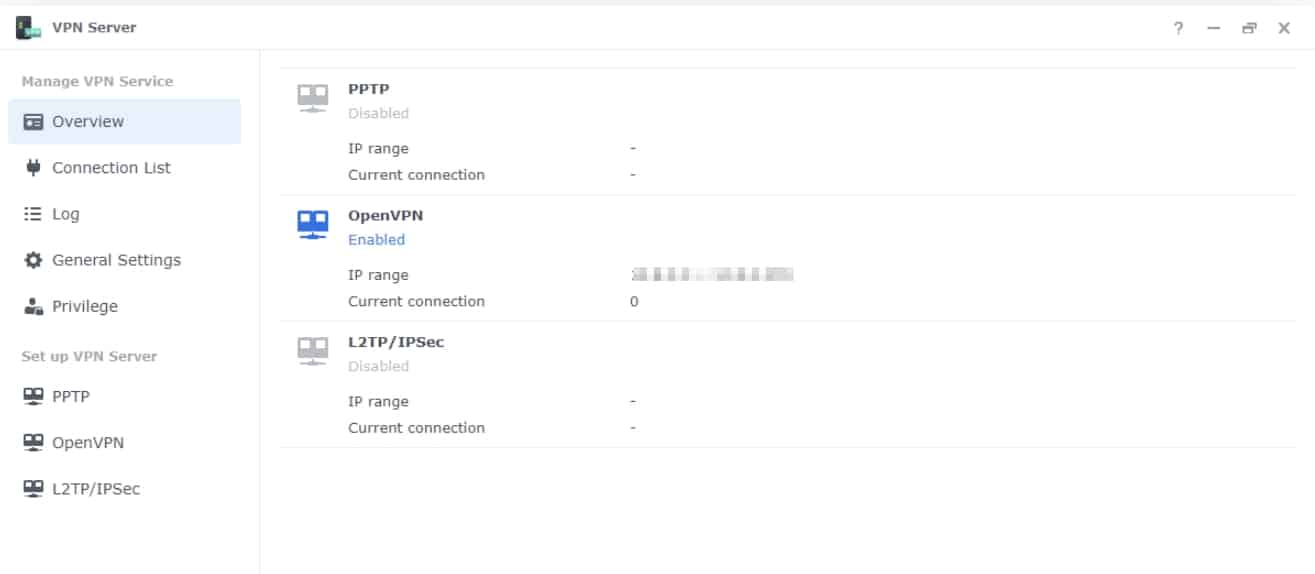
- Install the VPN Server from Package Center. Open Package Center, search for VPN Server, and install the official Synology package.
- Open VPN Server in DSM. Launch the VPN Server app from DiskStation Manager. You will need an administrator account to install and configure the package.
- Choose your VPN protocol. I recommend OpenVPN for most users because it is secure, widely supported, and suitable for remote access. L2TP/IPSec is also available and requires a pre-shared key, but it is less convenient for modern mobile users because Android 12 and later no longer support it natively. Avoid PPTP because it is obsolete and insecure.
- Enable OpenVPN. In VPN Server, select OpenVPN and enable the OpenVPN server.
- Set a VPN client IP range. Choose the dynamic IP address range that Synology will assign to VPN clients. Make sure this range does not overlap with your normal home LAN subnet.
- Allow VPN clients to access your LAN. Enable LAN access if you want to reach NAS files, SMB shares, printers, smart home devices, or other local network resources while connected to the VPN.
- Create a dedicated VPN user. For better security, create a separate DSM user account for VPN access instead of using your main admin account. Give this user only the permissions it needs.
- Grant VPN access permissions. In the VPN Server permissions settings, allow your dedicated user to connect using OpenVPN.
- Export the OpenVPN configuration file. Download the exported .ovpn file. You will use this file to connect to your server using OpenVPN Connect on a smartphone, tablet, laptop, or other device.
How to make your server reachable remotely
- Give your NAS a static LAN IP address. Assign a static IP address to the NAS, or create a DHCP reservation in your router. This ensures port forwarding rules keep working after the NAS or router restarts.
- Set up router port forwarding. Forward the OpenVPN port to your Synology NAS. The default OpenVPN port is usually UDP 1194, unless you changed it in VPN Server.
- Allow the VPN port in the Synology firewall. If you use Synology’s built-in firewall, create a rule that allows the OpenVPN port. You may also need to allow traffic from the VPN client subnet, such as 10.8.0.0/24, so connected devices can reach NAS services.
- Check for CGNAT or double NAT issues. If port forwarding does not work, check whether your ISP uses CGNAT or whether your home network has a double NAT setup. In that case, hosting a Synology VPN Server may not work without extra router changes, a public IP from your ISP, or an alternative like Tailscale.
- Set up DDNS if your public IP address changes. If your ISP gives you a dynamic public IP address, use DDNS so your VPN clients can connect using a stable hostname, such as a Synology DDNS address.
- Edit the .ovpn file if needed. Check whether the exported file points to the correct public IP address or DDNS hostname. If it contains a placeholder or local address, replace it with your DDNS hostname or static public IP.
- Enable full-tunnel routing if needed. If you want all internet traffic to route through your home connection, enable full-tunnel routing in the .ovpn file. In many Synology OpenVPN configs, this means uncommenting the redirect-gateway def1 line.
- Import the .ovpn file into your VPN client. Install an OpenVPN client on your phone or laptop, then import the edited configuration file.
Now that your VPN server is set up, you can connect remotely using your dedicated VPN user credentials. Once connected, test access to your Synology NAS, SMB shares, and any other home network resources you want to use.
If you enabled full-tunnel routing, run an IP check from your remote device. If it shows your home IP address, your internet traffic is routing through your Synology VPN server correctly.
Frequently asked questions
Is OpenVPN better than L2TP/IPSec or PPTP on Synology NAS?
Yes. I recommend OpenVPN because it is secure, reliable, and widely supported. L2TP/IPSec can work, but requires a pre-shared key and has weaker device support. Avoid PPTP because it is obsolete and insecure.
Does a VPN slow down Synology NAS?
Yes, it can. VPN encryption uses CPU resources, so older Synology NAS models may slow down. Try a nearby VPN server, reduce simultaneous tasks, or use WireGuard if your provider supports it.
Can I use QuickConnect instead of a VPN on Synology NAS?
Yes. QuickConnect is easier for basic remote access, but a VPN gives you more control, stronger privacy, and better protection for NAS traffic. I recommend a VPN if you want stronger security or need advanced routing options, such as port forwarding.





Set up a VPN on Synology NAS by installing VPN Server, choosing a protocol, configuring network settings and firewall rules, creating users, then testing remote access.