
If your upload speed is slow, the quickest fixes are usually switching to a wired ethernet connection, closing bandwidth-heavy apps, rebooting your router, and making sure nothing else on your network is saturating your connection.
This guide explains which fixes are most likely to work, when they help, and when the problem is your internet connection rather than your equipment. We also include separate advice for torrent users, where upload performance depends on additional factors such as peer availability and port forwarding.
Quick answer: What’s the fastest way to improve upload speed?
If your uploads are unexpectedly slow:
- Use a wired ethernet connection where possible.
- Close cloud backup, streaming, gaming, or video call applications using bandwidth.
- Restart your router and check for firmware updates.
Test your speed with only one device connected to rule out network congestion. - If speeds remain consistently low across multiple devices, contact your ISP — especially if you’re receiving much slower uploads than your broadband package advertises.
Before you start: Run an upload speed test using a service such as Speedtest or Cloudflare Speed Test. Repeat the same test after each change so you can see whether it actually improved your upload speed. Testing after every step makes it much easier to identify what’s causing the problem.
How to increase my upload speed? 7 easy methods
Here are seven methods to increase your upload speed ranked by effectiveness:
1. Switch to a wired connection
An ethernet connection will always be faster than wi-fi because it isn’t affected by signal interference from walls or other devices and offers a direct, stable link to your router. If you want to improve your connection speed for any reason, wired is the way to go.
Fortunately, setting up a wired connection is easy: just connect an ethernet cable from your router to your device. Longer cables or network switches make it a viable option, even if your device is far from the router.
2. Close bandwidth-heavy apps
Data-intensive apps like streaming services, cloud backups, or video calls can severely impact your upload speed. If your file uploads are slow or your Zoom calls keep lagging, closing unnecessary apps can help free up bandwidth for better performance.
Limiting the number of devices connected to your router is also a good idea. The more devices that share your internet, the slower your speeds will be. Devices that are syncing photos, downloading updates, backing up files, or streaming media can consume a significant portion of your available upload bandwidth. Disconnect or pause any devices actively using the network while uploading large files.
3. Reboot your router
Sometimes, all your router needs is a fresh start. Rebooting your router clears temporary data and resets the connection, which can help fix slow upload speeds. Turn it off, wait 30 seconds, then power it back on. Rebooting won’t permanently increase your upload speed, but it can resolve temporary software glitches, memory leaks, or stalled network sessions that reduce performance.
4. Install the latest router firmware
Firmware updates help keep your router running smoothly and may increase your upload speed in some cases. Newer models usually handle this independently, but older ones might need manual updates. Even modern routers may require manual intervention for critical fixes when automatic updates don’t apply immediately.
Follow these steps to update your router’s firmware:
- Find your router’s IP address (usually 192.168.1.1 or 192.168.0.1).
- Type the IP into your browser.
- Log in with your username and password (typically “admin” for both).
- Go to the firmware section.
- If an update is available, follow the instructions to install it.
- Restart the router afterwards to apply any changes.
Note: Never interrupt a firmware update once it has started. Losing power during the process can leave some routers unusable until they’re recovered.
5. Find a better spot for your router
Switching to a wired connection isn’t always an option (especially on mobile devices) and may be inconvenient.
If you’re stuck using wi-fi, changing the router’s position can improve signal strength. This reduces retransmissions and packet loss, which can noticeably improve upload performance on Wi-Fi connections. Place the router on an open, elevated central spot, away from walls or large metal objects.
It’s worth distinguishing between upload bandwidth and Wi-Fi signal quality. Your broadband package determines the maximum upload speed your ISP can provide, while Wi-Fi signal strength affects how efficiently your device can use that bandwidth. A poor wireless signal won’t increase your broadband upload limit, but it can prevent you from reaching it.
See also: How to improve wi-fi signal strength
6. Avoid throttling with a VPN
ISPs may throttle your upload speeds during peak hours to manage network traffic or if you upload large files and make frequent cloud backups. They might also slow down certain activities, like torrenting or gaming, to prioritize other types of traffic on the network.
One solution is to encrypt your traffic so your ISP can’t see which specific sites or services you’re using. You can do so by using a VPN (virtual private network), which masks your IP address and your online activity—whether you’re torrenting, backing up your data, streaming, and more.
WANT TO TRY THE TOP VPN RISK-FREE?
NordVPN is offering a fully-featured risk-free 30-day trial if you sign up at this page. You can use the VPN rated #1 for faster uploads with no restrictions for a full month. Avoid bandwidth throttling and boost your upload speeds while keeping your traffic secure.
There are no hidden terms—just contact support within 30 days if you decide NordVPN isn't right for you and you'll get a full refund. Start your NordVPN trial here.
A VPN can help if your ISP is selectively throttling certain types of traffic, such as torrents or cloud backups. Because VPN traffic is encrypted, your ISP cannot easily identify the application you’re using.
However, a VPN will not improve upload speeds if:
- Your broadband plan has a low upload limit
- Your home network is congested
- You’re connected to a slow VPN server
7. Keep your system drivers up-to-date
Aside from your router firmware, updating your operating system, motherboard, and network drivers could also contribute to better upload speeds. In contrast, outdated drivers may cause compatibility issues or limit performance.
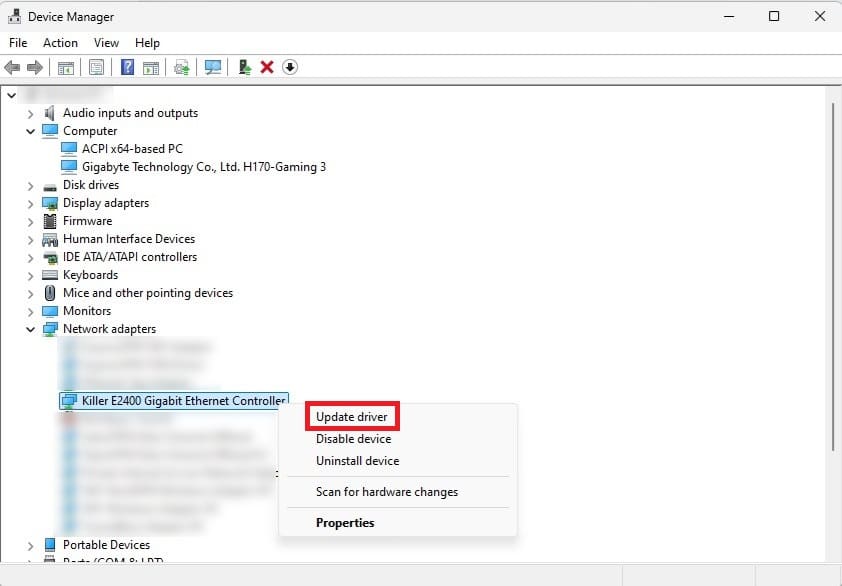
Visit your manufacturer’s website for the latest fixes, or update your drivers using the system device manager:
- Use the Windows search function to look up Device Manager.
- Click on it and you’ll be taken to a list of devices.
- Right-click the device you want to update and click Update driver.
If you’ve ruled out problems with your equipment and multiple speed tests show consistently poor upload performance, contact your ISP. They can check for line faults, congestion, or provisioning issues. If your broadband package simply doesn’t provide enough upload bandwidth for your needs, upgrading to a faster service may be the only long-term solution.
How do I increase my upload speed when torrenting?
The tips above should help for most purposes. If you’re looking for specific advice on how to increase your upload speed while torrenting, check these out:
1. Limit the number of active torrents
Running too many torrents simultaneously splits your bandwidth between multiple files, slowing down any uploads. Focus on one or two torrents to let them use the full potential of your connection. Pause others until your priority uploads finish for the best results.
2. Adjust upload speed settings
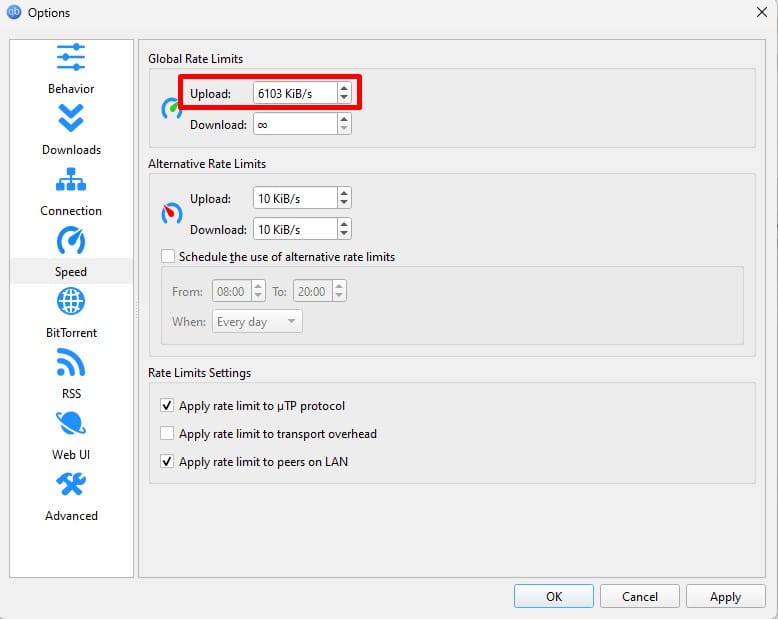
Most torrent clients let you tweak upload speed limits. Set the limit slightly below your connection’s maximum to avoid overloading the network. For example, if your upload speed is 50 Mbps, set it to around 45 Mbps for smoother and more stable uploads.
To do so in qBittorrent, click Tools > Options > Speed and set your desired upload speed limit under Global Rate Limits. The client uses KiB/s as a unit, so here’s a Mbps to KiB/s converter for convenience.
3. Share in-demand torrents
To improve upload speeds, focus on torrents with active leechers who need the files you share. Seed popular or recently downloaded torrents, as users are more likely to request file pieces from your device.
Most trackers let you sort torrents by seeders and/or leechers, making avoiding those with too many seeders easier, where competition may lower your upload rate.
4. Enable port forwarding
When torrenting, your device needs certain ports open to communicate with other peers. Without these open ports, your upload speed can be slower, as the connection may be blocked or limited.
Some VPNs block certain ports for security reasons, which could limit your torrenting speeds. In this case, enabling port forwarding on your VPN can help. This allows traffic through the correct ports, ensuring faster uploads (or that they even work in the first place).
Note that many VPN providers no longer support port forwarding due to security and abuse concerns. If yours doesn’t, there may be no setting you can enable.
Related: How to torrent safely
Final thoughts
Most upload speed problems can be solved without buying new hardware. Start with the basics — a wired connection, fewer competing devices, and a router reboot. If slow uploads persist across multiple devices after that, the issue is more likely your broadband plan or your ISP than your equipment.
Torrent users should also look at swarm activity, port forwarding, and VPN provider, which can matter as much as raw connection speed.
See also:


