
High packet loss on Xbox can cause lag, stuttering, rubber-banding, and disconnections even when your internet works fine on other devices. Usually the cause is unstable Wi-Fi, network congestion, router configuration, or an issue between your ISP and the game server.
This guide explains how to test packet loss on Xbox, find where the problem is happening, and work through the most effective fixes. Start with the simple checks and only move on if the problem persists.
Quick answer
If your Xbox is reporting high packet loss, try these in order:
- Check Xbox and game-server status to rule out an outage.
- Restart your Xbox and router.
- Use Ethernet instead of Wi-Fi, if possible.
- Pause downloads and disconnect unnecessary devices.
- Test your connection several times to see if packet loss is constant or intermittent.
- Forget and reconnect to Wi-Fi if you’re wireless.
- Clear the Xbox alternate MAC address and restart.
- Temporarily disable router QoS settings if they seem to be causing problems.
- Check UPnP and NAT settings if you have multiple consoles or NAT errors.
- Contact your ISP if packet loss continues over Ethernet, especially if other devices are affected.
A VPN can sometimes help if packet loss is caused by inefficient ISP routing, but it shouldn’t be your first step. A VPN adds another network hop and can itself increase latency or packet loss.
What does packet loss mean on Xbox?
Packet loss happens when data packets sent between your Xbox and another system fail to arrive. Games rely on a constant exchange of small packets carrying movement, actions, and game-state data.
A small amount may be barely noticeable; higher or sustained loss can cause lag, players/objects jumping around, rubber-banding, voice-chat issues, freezes, or disconnections.
If Xbox reports 100% packet loss, don’t assume your connection is dead. Run the test again and check whether you can still reach Xbox services and online games.
Why does my Xbox have high packet loss?
The first step is finding where it’s happening: between your Xbox and router, somewhere on your ISP’s network, or further along the route to the game server.
- Unstable Wi-Fi: The most common cause. Distance from the router, walls, furniture, interference, and other devices sharing the network all contribute. Testing with Ethernet is the best way to rule this in or out. If packet loss disappears, the problem is wireless.
- Network congestion: Large downloads, 4K streaming, or uploads happening at the same time can force your router to queue packets, increasing latency and sometimes causing loss. This is especially noticeable on connections with limited upload bandwidth.
- Router problems: Outdated firmware, temporary faults, or QoS/UPnP/firewall/NAT settings that don’t play well with your Xbox. Change one setting at a time and retest so you know what helped.
- ISP or routing problems: If packet loss happens over Ethernet and affects other devices too, the issue is likely beyond your home network, in your ISP’s routing.
- Game-server problems: If only one game is affected, check that game’s official status channels before touching your Xbox or router settings.
- Faulty hardware: A damaged cable, bad router port, failing network adapter, or overheating gear can cause intermittent problems. Try another cable or port to rule this out quickly.
How to test packet loss on Xbox
- From the Xbox Home screen, open Settings.
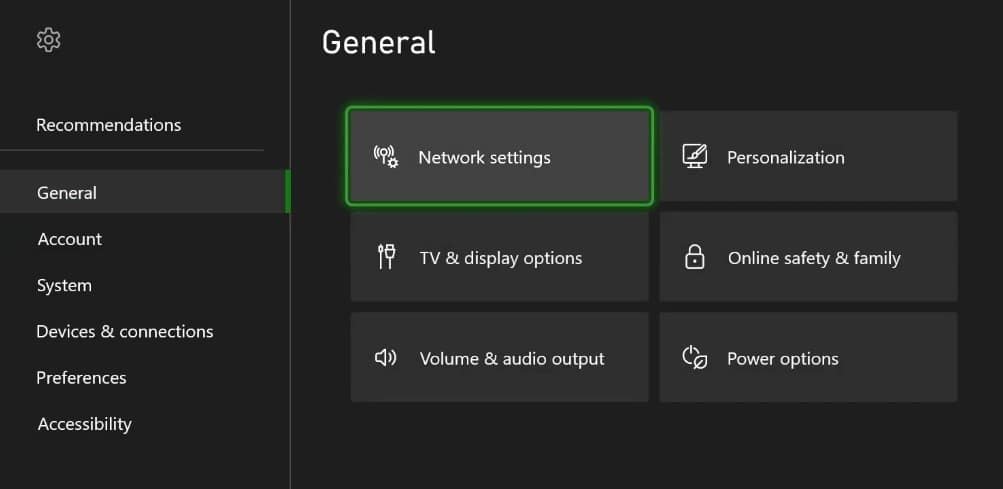
- Select General > Network settings.
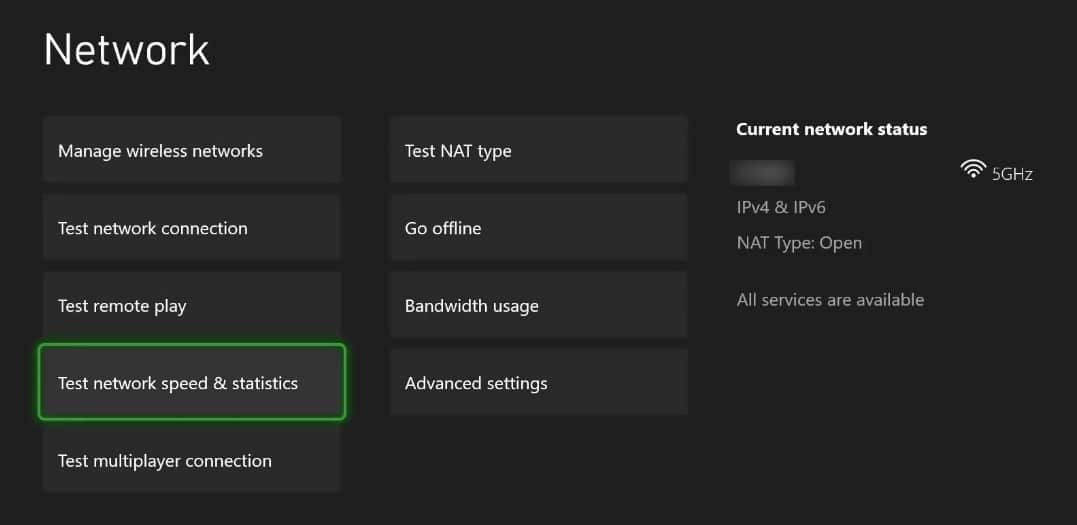
- Select Test network speed & statistics.
- Check the Packet loss result.
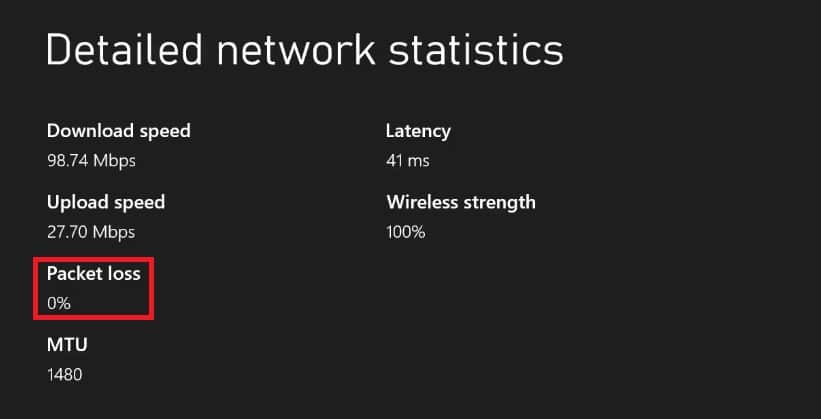
Run the test several times, ideally at different times of day, and record results. The pattern matters more than one number: 0% on Ethernet but high loss on Wi-Fi points to a wireless problem; consistent loss on both points to the router, ISP, or wider network.
Fixes
Packet loss can come from a mix of console, network, or ISP issues. Try the following:
Restart your Xbox and router
Unplug the router for about 30 seconds, let it fully reconnect, then restart the Xbox.
Use Ethernet instead of Wi-Fi
Connect directly to the router and retest. If loss disappears, focus on improving Wi-Fi rather than changing Xbox or ISP settings.
Reduce network congestion
Pause downloads/uploads and disconnect devices you don’t need online — especially anything uploading in the background, like cloud backups or security cameras.
Forget and reconnect to Wi-Fi
If Ethernet isn’t practical, remove your saved wireless connection and set it up again.
- Go to Settings > General > Network settings.
- Select Manage wireless networks.
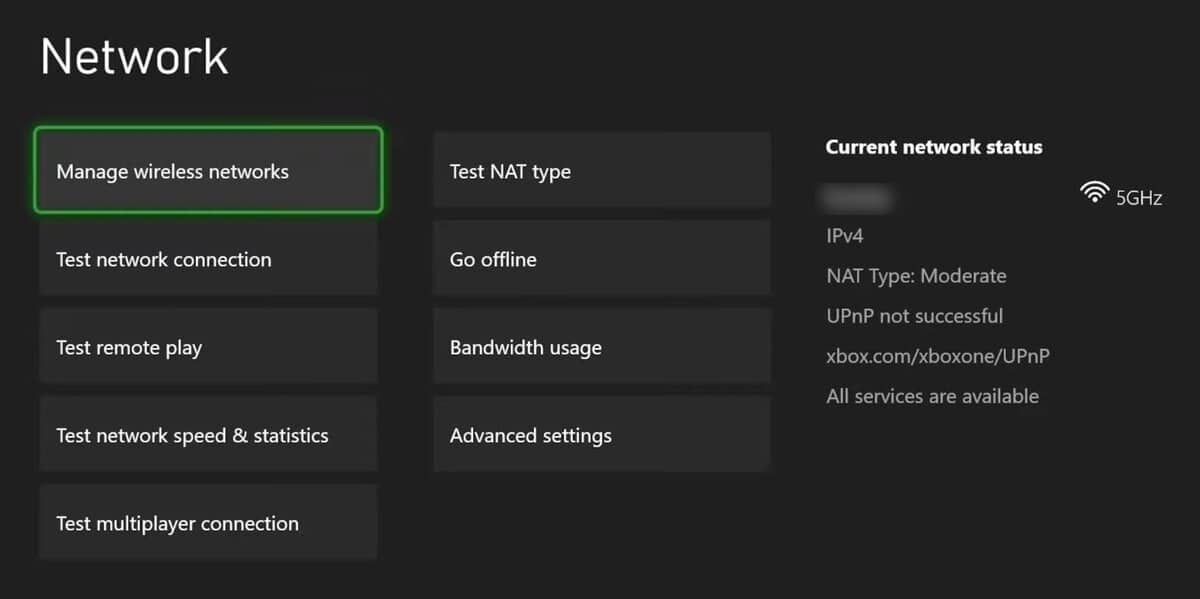
- Select Manage my networks
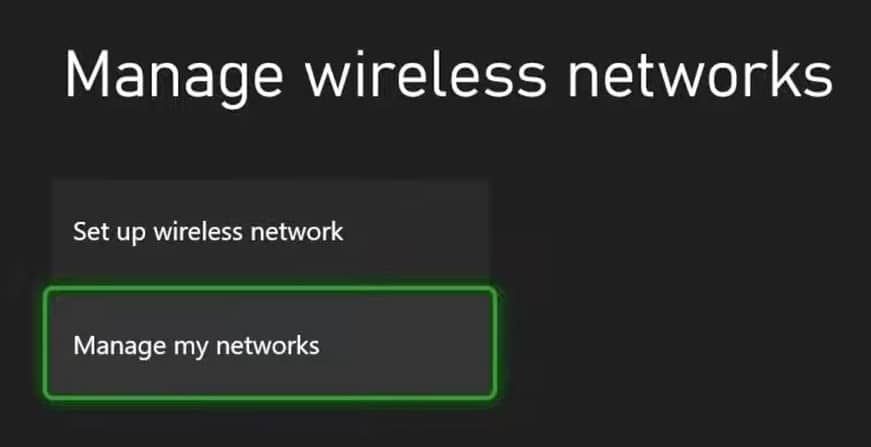
- Select your saved Wi-Fi network.
- Choose the option to forget/remove the network.
- Select Set up wireless network and connect again.
Try a different Wi-Fi band
5 GHz is faster but shorter-range; 2.4 GHz travels further but is more congested. If your router combines both under one name, separate them temporarily for testing. On 2.4 GHz, use channels 1, 6, or 11 to avoid overlap.
Clear the alternate MAC address
If you’ve previously configured an alternate MAC address on your Xbox, clearing it can eliminate a network configuration issue.
- Go to Settings > General > Network settings.
- Select Advanced settings.
- Select Alternate MAC address.
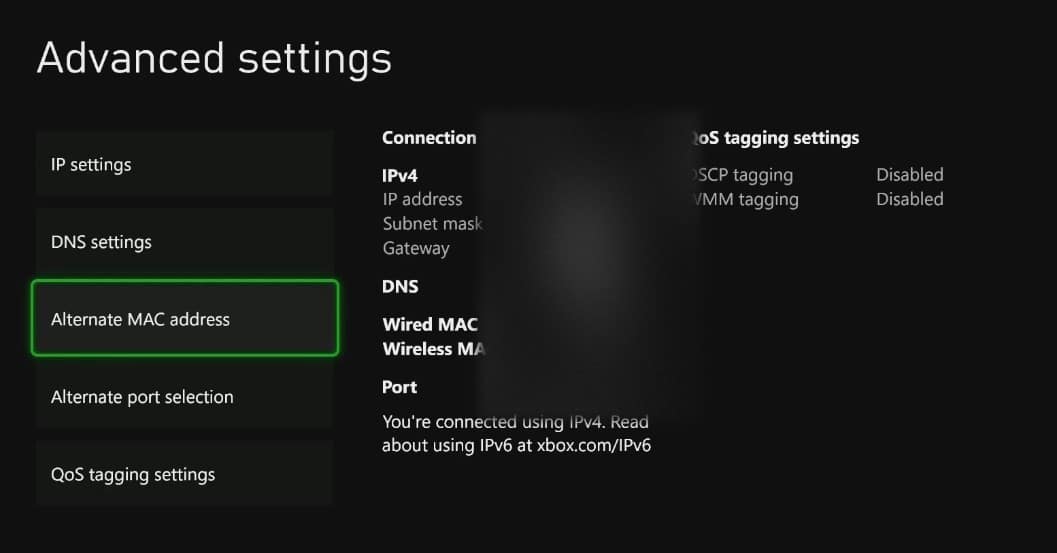
- Choose Clear.
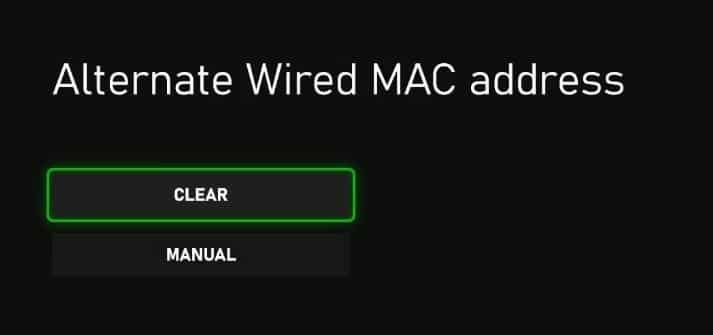
- Restart the Xbox when prompted.
If you haven’t manually configured an alternate MAC address, this is unlikely to be the cause of packet loss, but clearing the stored value is a relatively low-risk troubleshooting step.
Test Xbox QoS tagging
Xbox supports QoS tagging options that can mark traffic for network equipment that understands those markings. These include DSCP and, on compatible wireless connections, WMM. Their usefulness depends heavily on the router and network equipment. They aren’t a universal solution for packet loss.
If you’re experiencing problems, you can test the settings individually:
- Go to Settings > General > Network settings.
- Select Advanced settings.
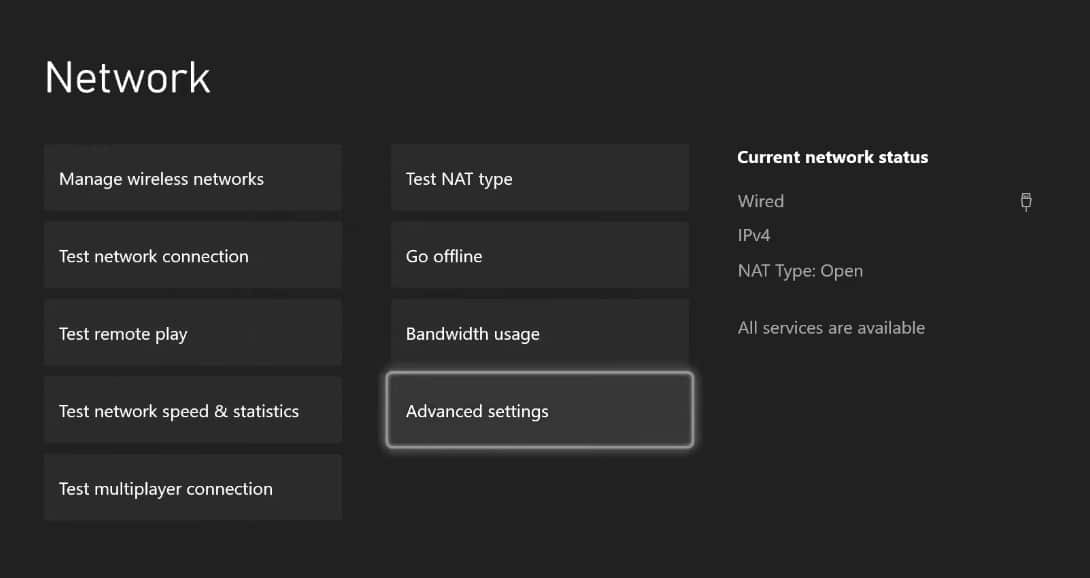
- Select QoS tagging settings.
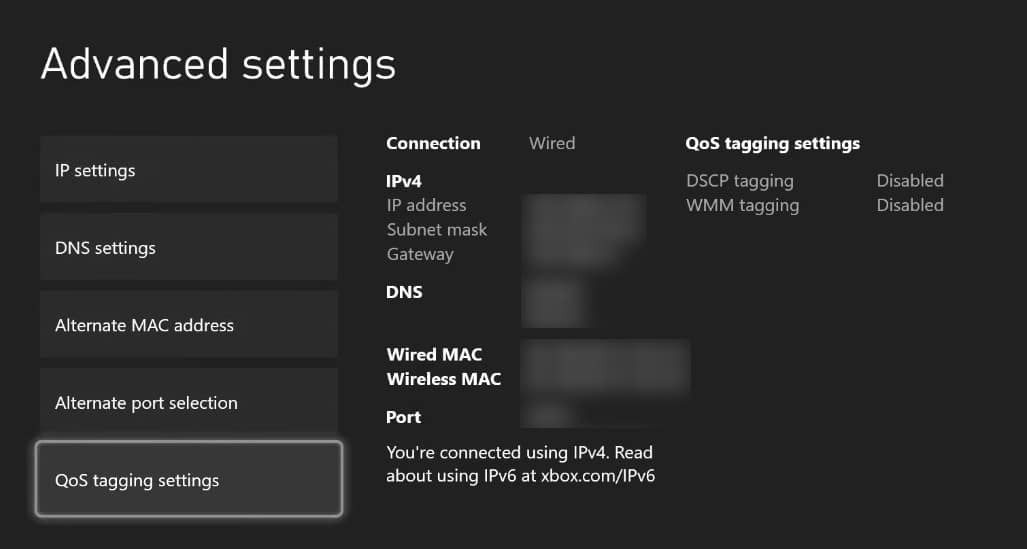
- Test the available options one at a time.
- Restart the Xbox and repeat the network test after each change.
If packet loss or latency gets worse, return the settings to their previous state.
Check your router’s QoS settings
Poorly configured QoS can hurt more than help. Temporarily disable it and retest; if that improves things, consider reconfiguring it to prioritize gaming traffic instead. Change one setting at a time.
Check UPnP and NAT
If Xbox reports Strict/Moderate NAT or you run multiple consoles, make sure UPnP is enabled in your router admin panel, then restart both router and Xbox. If UPnP doesn’t work well, manual port forwarding or Xbox’s alternate port feature are options — but these fix NAT/connectivity, not packet loss directly.
Can a VPN fix high packet loss?
A VPN can reroute traffic around a problematic ISP path. However, it adds a hop, which can increase latency. If the VPN server itself is congested, loss could get worse. It’s also not a reliable fix for ISP throttling. To test, connect through a VPN (starting with a nearby server) and rerun the network test.
Should I put my Xbox in a DMZ?
Not as a first move. DMZ exposes the console more directly to unsolicited internet traffic and won’t fix loss caused by Wi-Fi, congestion, hardware, or ISP routing. Try UPnP or targeted port forwarding first, and only test a device-specific DMZ (never your whole network) as a last resort. Disable it if it doesn’t help.
Multiple Xbox consoles
Multiple consoles can complicate NAT/port mapping. Try Settings > General > Network settings > Advanced settings > Alternate port selection for NAT or multiplayer issues. If every console shows packet loss, though, investigate the router, Wi-Fi, or ISP instead.
If packet loss continues
Test over Ethernet, then check whether other devices are affected too. Run a continuous ping test from a computer on the same network, first to the router, then to an internet destination.
Also try another cable and router port, check for firmware updates, check your ISP’s status page, test at different times, and note whether the issue affects every game or just one. When contacting your ISP, share your Ethernet test results and packet-loss figures. This is far more useful to them than reporting general lag.
The bottom line
High packet loss on Xbox isn’t necessarily an Xbox problem. Start by testing over Ethernet: if loss disappears, focus on Wi-Fi; if it persists, check congestion, router settings, and your ISP. If only one game is affected, look at that game’s servers first. A VPN can help with ISP routing issues but isn’t a universal fix. Testing each part of the connection separately, rather than changing settings at random, is the fastest way to find the real cause.
Frequently asked questions
What can cause 100% packet loss?
100% packet loss only happens when none of your data reaches its destination. This can occur if a game server is down, your Xbox or router hardware is failing, your Ethernet cable or port is damaged, or your ISP has routing issues. Essentially, something along the network path is fully blocking packets.
Why is my Xbox so laggy but the internet is fine?
Your Xbox can lag even if other devices run smoothly because local network issues affect game traffic differently. Poor Wi-Fi signal, router placement, too many connected devices, or interference from electronics can slow or drop packets. Using Ethernet usually fixes most of these problems.
Other factors like corrupted cache, using a custom MAC address, or poorly configured DNS, DHCP, or router/Xbox QoS settings can also cause lag. Clearing your Xbox’s cache, resetting the alternate MAC, and reviewing all your network settings (including QoS tags on Xbox) can solve any underlying connectivity issues.
How do I tell if my internet is being throttled?
You can spot throttling by running speed tests at different times or by comparing speeds with a VPN enabled. If speeds improve significantly with a VPN, your ISP may be limiting certain types of traffic (like gaming or streaming) even though your overall connection is fine.
Can I use a free VPN to fix packet loss on Xbox?
Free VPNs generally struggle with speed, server capacity, and stability. Using one to fix packet loss on Xbox may worsen lag or disconnects. Paid services with large, fast networks are far more effective at rerouting traffic and reducing packet loss.



